
Home › Epic › Personalization › Epic Earth
Epic Earth: Bring Your Settings With You
If you are coming to Freeman from another Epic organization, a good share of your personalization can come with you. Your SmartPhrases travel through Epic Earth, Epic's community site for users. Everything else, your favorite orders, your personal Order Set versions, and your In Basket QuickActions, has to be written down before you leave and rebuilt here. This page walks the whole process in order, with the screens you will see along the way.
Connect to Epic Earth
Epic Earth is Epic's community site for users, and it is also the locker your SmartPhrases sit in between systems. You reach it from inside Hyperspace, not from a browser.
- Click the globe icon in the upper right area of your screen to open Epic Earth.
- Create an account or log in to the account you already have.
- When you are logged in and can see the news feed, you are ready to upload and download SmartTools.
Upload your SmartPhrases
This is the step that makes the trip worthwhile. Do it before your last day of access, because once your old login is gone the phrases are gone with it.
- Go to
 My Tools >
  My SmartPhrases.
 - Select the SmartPhrases you want to upload.
- Sending all of them? Skip to step 3.
- Sending only some? Hold CTRL to pick them, then right-click the selection and click Select for my Upload.
- Click
 Move my SmartTools >
  Upload My SmartTools.
 - In the Upload My SmartTools window, choose all SmartPhrases, or only the ones you picked in step 2.
- Any user SmartLists used inside the phrases you upload come along automatically.
- Any SmartPhrase holding text copied out of a patient chart is left behind, because it could carry confidential information.
- Click Begin Upload.
- A confirmation appears in the upper right corner when the upload finishes. It can take a few minutes, so if nothing shows up right away, come back to SmartPhrase Manager later and check.
- Click
 Refresh on the toolbar. The Upload Status column changes to Uploaded for each phrase that made it.
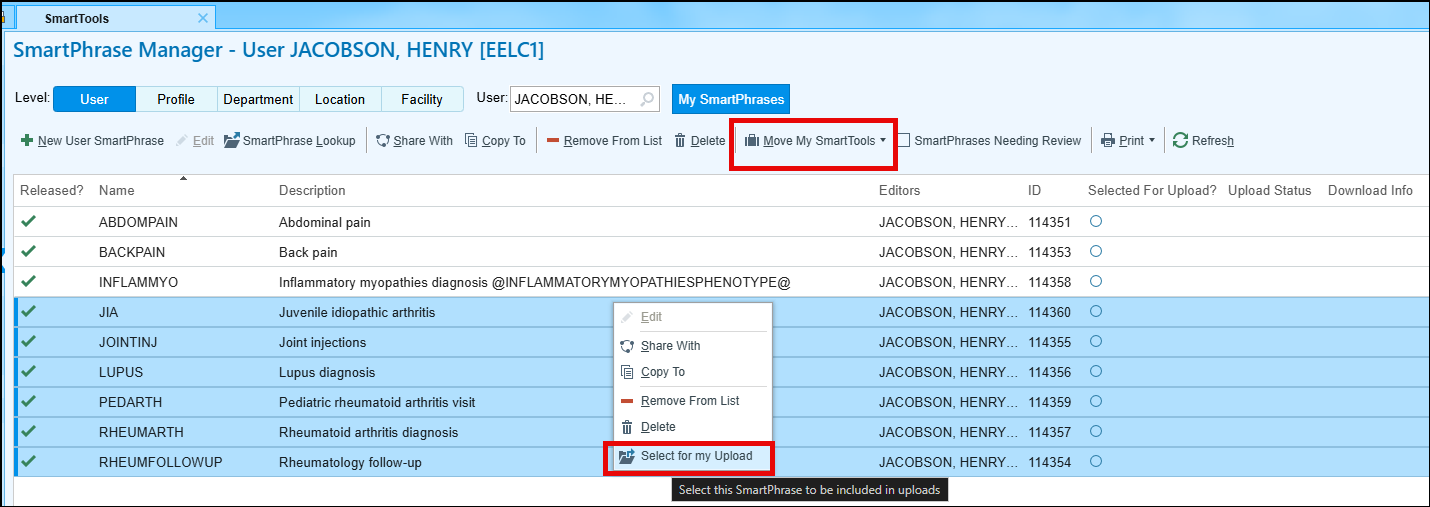
Pick specific SmartPhrases if you need to, then use Move My SmartTools to open the upload window. Click to enlarge.
Uploading twice from the same organization replaces the first upload. Anything you leave out of the newer upload disappears from your Epic Earth account, so include everything you still want each time.
Write down your favorite orders
Favorite orders do not travel. Neither does the way you organized them. Copy them into a text file, in Word or anything else you can open later, and bring that file to your User Settings Lab.
- In Hyperspace, go to My Tools > Preference List Composer.
- Double-click one of your preference lists to open it.
- In your text file, list each favorite order and its settings.
- Your order panels live in the preference list too, so record them right alongside the rest.
- Go back to the Preference List Selector and repeat for every other list that has entries in it.
- Save the file.
Record your Order Set versions
Personal Order Set versions stay behind as well. Write down what you changed so you can make the same choices here.
- In Hyperspace, go to My Tools >
 User SmartSets.
 - Open an Order Set under My User Versions.
- Record your personal settings in that set: which orders are selected by default, and the order details you changed.
- Repeat for every version you want to rebuild.
- Save the file.
Record your QuickActions
QuickActions are the one-click In Basket replies you built yourself. Capture the wording now so retyping it here is quick.
- In Hyperspace, go to In Basket >
 Manage QuickActions.
 - Double-click one you built yourself, marked with
 in the Availability column.
 - Write down its settings: default message text, subject line, and any option selections.
- Repeat for each QuickAction you want here.
- Save the file.
Download your SmartPhrases
Log in to Freeman's Epic, open a test patient the way your lab leader shows you, and pull your SmartTools down out of Epic Earth. A few may need a look before they will work here, which the next section covers.
- Go to My Tools > My SmartPhrases.
- Click Move my SmartTools on the toolbar and select Download my SmartTools.
- First download in this system? Continue to step 3.
- Downloaded here before and have since re-uploaded from your other organization? Choose whether to update the phrases you already pulled down. Useful if you work in both systems and want shared phrases to match.
- Enter text to append to the names and synonyms of everything you download.
- An abbreviation for your old organization works well.
- It keeps your phrases separate from Freeman's and stops a phrase from being deactivated because its name is already taken here.
- Click Begin Download.
- A confirmation appears in the upper right corner after a moment.
- Click Refresh to load them into SmartPhrase Manager. Anything showing only a green check in the Download Info column is ready to use right now.
- To see whether anything needs attention, reopen the Download my SmartTools window from step 2.
- Click the link under Last Download to open the report.
- Anything highlighted red is marked as needing review. If you have any, keep reading.
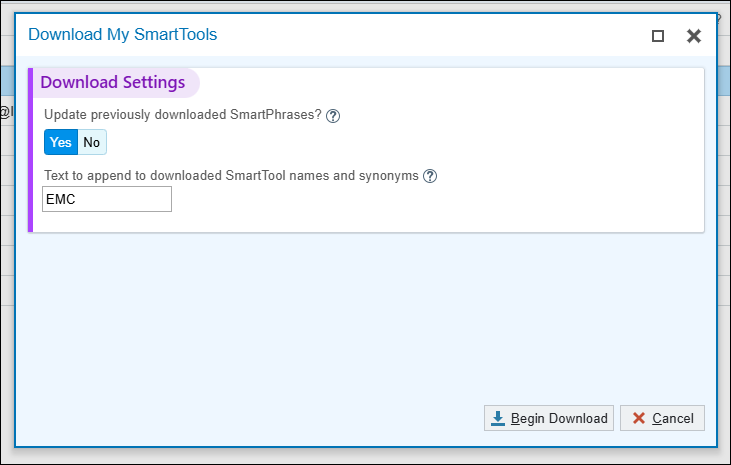
The append text, here EMC, keeps your old phrases distinct from Freeman's. Click to enlarge.
SmartTools needing review
A phrase or SmartList built somewhere else can point at things that only existed there: generic rules, flowsheet rows, system-level SmartLists. Those references are stripped out on the way in, and Epic flags the tool so you look at it before you use it. A phrase is also flagged when its name or synonym is already in use here.
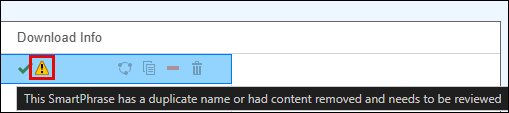
The warning triangle in the Download Info column is the flag to look for. Click to enlarge.
SmartPhrases that need review
- In SmartPhrase Manager, check SmartPhrases Needing Review on the toolbar to filter the list down to those.
- Double-click a row to open it in the SmartPhrase Editor.
- Look for text that replaced something removed on the way in. Press F2 to jump through the replacements. Nothing there? Skip to step 5.
- Edit the phrase until it is usable. Freeman IT can help you find or build the Epic content it should reference here.
- Click Mark as Reviewed under Upload and Download Actions.
- Check Released to finish turning it on. If a warning says the name is a duplicate, change the name or the synonym to something unused.
- Repeat for each flagged phrase.
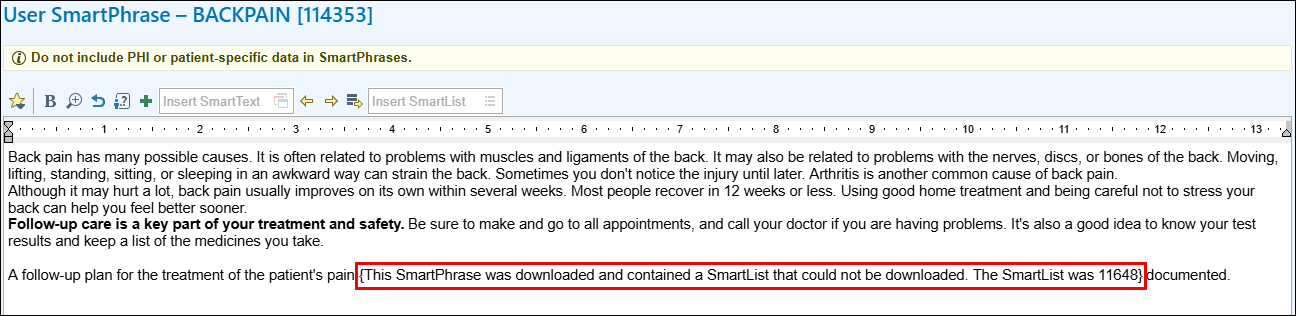
The replacement text tells you exactly what was dropped and which SmartList it was. Click to enlarge.
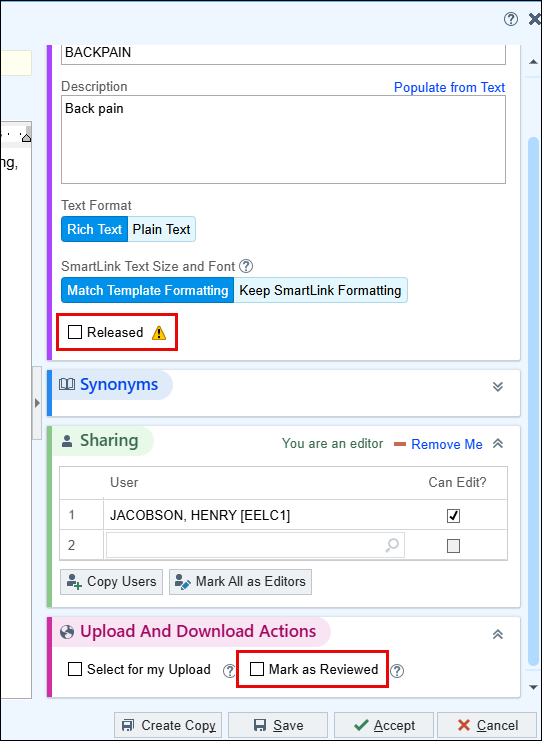
Two checkboxes finish the job: the review flag, then Released. Click to enlarge.
SmartLists that need review
- Open the SmartList activity.
- Search for one of your downloaded SmartLists that needs review and double-click it.
- In the SmartList Editor, look for the text that replaced whatever was removed.
- Edit it until it works for you. Again, Freeman IT can help with the Epic content behind it.
- Check Released under Settings to turn it on. If the name is a duplicate, give it a unique one.
- Repeat for each flagged SmartList.
Rebuild your favorite orders
Open the text file you brought and work down the list. This is the longest step of the lab for most providers, and the one that pays back every shift afterward.
- In Hyperspace, go to the Preference List Composer.
- Open the preference list you want to add orders to.
- Click
 New Section to add the categories you want.
 - Click New Item.
- Search for one of the orders you had favorited in your old system.
- Set up the order details.
- Change the Display Name to whatever you actually call it. It is the fastest way to order faster.
- Add any other sections and subsections you want.
- Work through the rest of your favorites.
Follow a colleague's preference list
If someone in your specialty already keeps a good list, follow theirs instead of building your own from nothing. Ask your lab leader or a Super User in your department who to follow.
- Open a patient encounter.
- Open the order search window.
- In Order Search, click Follow Users.
- Search for the clinician whose list you want, then click
 Accept.
Recreate your order panels
An order panel is a set of orders you place together, a lab bundle for instance, saved under one name so you search once instead of five times.
- In a patient chart, search for the orders you want in the panel.
- With the orders queued for signing, click Options and select
 Create Panel.
 - Enter a name you will remember in the Display name field.
- In the Section field, pick where in your preference list it should sit, or click New to add a section.
- Edit the details of each order if you need to.
- Click Accept.
Recreate your Order Sets
Working from what you recorded, rebuild your personal versions here. The Freeman set is the starting point, and your version sits on top of it.
- In a patient encounter, open an Order Set you want to customize.
- Click Manage User Versions and select Create My Version.
- Name the version something that makes sense to you, Mild Pneumonia for instance. Only you see the name.
- Click the order details link to set dose, frequency, rate, and the rest.
- Check or clear the box next to each order to control what is selected when the set opens.
- Click Accept.
Changing the Freeman version of an Order Set for everyone is a different thing entirely and goes through Round Table. See OPA and Order Set Requests.
Recreate your QuickActions
Last stop. Retype the QuickActions from your file so your In Basket answers itself the way it used to.
- Click the arrow to the right of
 Manage QuickActions on the In Basket toolbar.
 - Click New QuickAction and pick the type you want.
- Name it in the Button Name field.
- Set a default subject line in the Subject field.
- Fill in the other fields and selections from your notes.
- Write your default message text. SmartTools work in here.
- Click Accept to save and start the next one.
- When you are finished, click Accept.
Where to get help
The download and the rebuild are what the lab is for. Bring your text file and your Epic Earth login. Details and how to schedule are on the Personalization page.
When a phrase points at Epic content Freeman has not built, ask the IT Help Desk at 417-347-4500 or open a ticket at fhsitsm.saasit.com.