
Epic FAQ
Questions Freeman Medical Staff are asking about Epic at Freeman, answered from the build team's written responses. New topics are added as they are settled.
First week on Epic? The four things that catch people most, results release, legacy data, Secure Chat, and pended orders, are on Don't Be Surprised.
What MyFreemanHealth is

MyFreemanHealth is Freeman's MyChart, the patient's own portal. Patients and their approved proxies sign in to see results, visit summaries, and immunizations, message the care team, and schedule appointments. Results and notes release to patients here immediately when they are final.
It is the patient's view of the record, not a provider tool. Records moving between organizations are a different thing: see Care Everywhere or EpicCare Link.
How MyChart works for pediatric patients and their parents
MyFreemanHealth is Freeman's MyChart. Parents and guardians reach their child's chart through proxy access, and what a proxy can see changes at age 12 and again at age 18. These rules were set by the Digital Engagement group with Legal and Compliance and are reflected in the Epic build and in the MyFreemanHealth terms and conditions.
Pediatrics is not taking access away from parents. Selected areas of the chart are restricted for adolescents, exactly as they have been on the patient portal for years, because Missouri lets minors consent on their own to certain care and because there are times when a fully open chart is not safe for the patient. How we word this to families matters.
The three age bands
Who sees what
Clinical access covers results, notes, medications, and health information. Messaging is sending and receiving messages with the care team. Scheduling is booking, changing, or cancelling appointments and eCheck-In.
| RELATIONSHIP TYPE | PATIENT AGE | CLINICAL ACCESS | MESSAGING ACCESS | SCHEDULING ACCESS |
|---|---|---|---|---|
| Parent accessing child | 0 to 11 | |||
| Parent accessing teen: limited access | 12 to 17 | |||
| Parent accessing teen: expanded access | 12 to 17 | |||
| Full adult access | 18 and older | |||
| Limited adult access | 18 and older | |||
| Power of attorney | All |
Billing is separate. Statements and payment plans follow the guarantor account, not proxy access, so a parent who is guarantor still sees billing for a teen with a limited proxy.
What a limited parent proxy (ages 12 to 17) can and cannot do
- View allergies, personal information, health summary, insurance and coverage, and billing
- Sign documents
- Update end-of-life planning
- Fill out medical and surgical history questionnaires
- View the growth chart, appointment details, messages, lab results, or letters
- View or update medications
- Schedule, cancel, or change appointments, or complete eCheck-In
- Send messages on the teen's behalf
- Fill out substance use, sexual history, general history, or patient-initiated questionnaires
How a teen grants or removes parent access
- Patients 12 to 17 are offered their own MyFreemanHealth account.
- Expanded parent access can be granted in person only, not inside MyFreemanHealth, so the teen understands what the parent will see.
- The teen can edit or remove a proxy at any time from MyFreemanHealth.
- Nothing converts from the old portals. Legacy portal accounts and proxy relationships do not carry into Epic, and parent and teen proxies are not created automatically. Every proxy must be requested.
Sensitive content
Missouri lets minors consent on their own to pregnancy care, sexual health and STI care, and substance use treatment. In MyFreemanHealth, clinical information in general is hidden from a limited parent proxy, which covers these categories. Sensitive notes never show to proxies. A parent with expanded access sees clinical information.
Records requests
Parents can still request records through Health Information Management. Current release of information policies continue; Epic adds no new system restrictions. Parents will still be able to access the medical record when allowed per statute, either through the Release of Information department or from MyChart.
Talking with families
- Lead with what stays: appointments through the clinic, billing, immunizations on request, and the full chart until age 12.
- Explain that at 12 the teen gets their own account and can choose to share more with a parent, in person, at any visit.
- Avoid the word "restricted" with parents; say "the teen controls a few areas of their chart, the same as on the old portal."
- For legal questions on the Missouri basis, route to Compliance rather than answering from memory.
Which Epic environment am I in, and which ones do I need?
PRD is the live chart and the only place clinical work counts. The environment name shows on the desktop icon and in the Hyperspace title bar. Everything else (CRE, DEMO, POC, TST) holds test or training data, so nothing you do there reaches a real patient.
Epic Environments: the full guide ↑ Back to contentsShould I use an iPad?
Not in your first week or two. Start with Hyperspace, Epic on a Freeman workstation, and Haiku, Epic on your phone. Those are what training covered and what Super Users support on the floors, so get comfortable with them first.
If you already have an iPad, you are welcome to try Canto, the iPad version of Epic. Do not buy a new iPad in your first weeks and try to fit it into a workflow you are still learning.
Once you are settled, an iPad can be a perfectly reasonable tool: it makes your Epic work more mobile. Canto needs the same BYOD and Remote Access request as Haiku; setup is on Haiku and Secure Chat Setup.
What a Super User does, and will there be one for everybody?
What a Super User is
A Freeman colleague from your own area (a nurse, medical assistant, front desk lead, therapist, or provider) who volunteered for extra Epic training, learned the workflows for their department, and helped proctor the classes you attended. They are not Epic employees and not analysts. They know your clinic or unit, and they know Epic well enough to show you, at your elbow, how to do what you are trying to do.
What they do at go-live
How-to questions: where a button is, how to find your patients, how to pend an order, why your note will not sign, how to fix a personal setting. They walk you through it on your screen rather than doing it for you, so you can do it alone the next time. Most Super Users are released from their normal duties during go-live to do this. Some providers are also Super Users; they will be seeing their own patients and helping between visits.
What they do not do
Fix what is broken or built wrong. A device that will not work, an order that will not go through, access you should have but do not: that is a Something in Epic? ticket at fhsitsm.saasit.com or a call to the Command Center at 417-347-4500, and your Super User will tell you so. Efficiency ideas go to Epic Suggestions. Clinical questions go where they always did.
Will there be one for everybody?
No. Most clinics will not have a physician Super User or an Exemplar at the elbow for most of go-live. Super Users help when you need them, and they can regroup with you between patients and at the end of clinic. Plan on that rhythm rather than on someone standing beside you all day: keep a running list of what slowed you down and go through it with your Super User at the end of the day. Build problems become tickets; click problems become Epic Suggestions.
How to find yours
Black vest. Ask your clinic office manager who your Super User is and when they will be there, and introduce yourself before go-live; it is easier to flag someone down on day one when you already know their name.
Black vest. Ask your clinic office manager who your Super User is and when they will be there, and introduce yourself; it is easier to flag someone down when you already know their name.
How to get the most out of them
Before go-live, ask your Super User to watch you do your five most common tasks and tell you what you are missing. On day one, ask them to be with you for your first two or three patients rather than calling after something goes wrong.
Ask your Super User to watch you do your five most common tasks and tell you what you are missing, rather than calling after something goes wrong.
Beyond Super Users
Epic's own at-the-elbow staff round every unit and clinic for the first days. Specialty Exemplars, practicing physicians and APPs from other Epic organizations, are on site the week of October 26 for the specialties listed on the Epic overview. F1 inside Epic opens the Physician Learning Home tip sheets any time.
F1 inside Epic opens the Physician Learning Home tip sheets any time.
↑ Back to contentsCare Everywhere or EpicCare Link: which one is which?
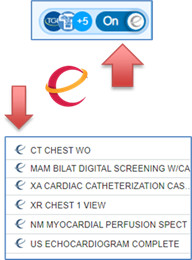
Care Everywhere moves patient records between organizations automatically, inside Epic, with nothing to log into. EpicCare Link is a separate web portal with its own login, used when someone needs to work in another organization's chart. MyFreemanHealth is the patient's own view of their record, covered at the top of this page.
- What it is
- Epic's record exchange between organizations, built into Hyperspace. Nothing to log into, no request to submit.
- What you get
- Outside notes, results, medications, allergies, problems, and immunizations, which you reconcile into the chart.
- Direction
- Both ways between organizations, automatically, for treatment.
- Use it for
- Referrals and record exchange. This is the default and it covers nearly everything.
- At Freeman
- Connected organizations cover a wide radius around Joplin, including Northwest Arkansas and reaching Springfield and Kansas City.
- What it is
- A secure web portal into an Epic organization's chart, opened in a browser with its own login.
- Into Freeman
- Referring providers and their office staff view records for patients they share with us. Read-only.
- Out from Freeman
- The only way to place orders in another Epic organization's system. Care Everywhere moves records; it does not let you order somewhere else.
- How rare
- Uncommon. Not a general provider tool. Access is arranged department by department and clinic by clinic for the few relationships that need it, and never needed by Freeman Medical Staff, who use their own Epic login.
- At Freeman
- Live. The sign-in and request address is epiccare.freemanhealth.com. Outside organizations request their own account there; each organization names a site administrator who then assigns accounts to its staff. Questions about connecting an organization to Freeman go to Drew Hartley, Business Development Manager, AKHartley@freemanhealth.com, 417-347-3677.
Which one do I need?
Care Everywhere. Already in the chart, nothing to request.
Their EpicCare Link. Rare, and set up for your department rather than person by person, so start with your department leadership.
Freeman's EpicCare Link. Send them to epiccare.freemanhealth.com to request an account; their organization's site administrator assigns logins to their staff. Questions about the connection go to Drew Hartley, Business Development Manager, AKHartley@freemanhealth.com, 417-347-3677.
Care Everywhere is for treatment. Formal release of information still goes through Health Information Management.
What a referring office will see. After the request is submitted, the office receives an email to verify the address it entered, then a second email with a verification number, then login credentials. Password and two-factor setup happen at first sign-in. Freeman Medical Staff members use their own Freeman Epic login and do not need an EpicCare Link account.
↑ Back to contentsShared care with an APP: who bills, and how do I add the FS modifier?
Nothing about the care changes. When a physician and an advanced practice provider (APP) share a visit, keep documenting the way you did in our previous system, and bill the way you were taught before: as a split or shared visit, with the FS modifier. What is new is where the modifier goes in Epic: the Level of Service section, before you sign the visit.
Add FS to the visit
- Click the level of service button at the bottom right of the visit to open the Level of Service section. Once a level is chosen, the button shows its code (99213 here).
- Choose the level of service, for example Est 3.
- Click the SharedCare modifier button. Hover over it to check: it reads SPLIT OR SHARED E/M VISIT [FS].
- Sign the visit as usual.
![Level of Service section with Est 3 selected and the SharedCare modifier button showing the tooltip Split or shared E/M visit [FS]; an arrow runs from the 99213 level of service button to SharedCare](../images/shared-care/sharedcare-fs.png)
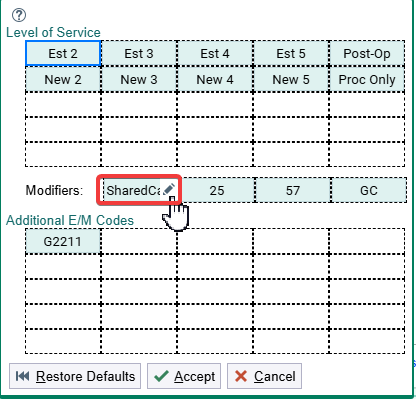
No SharedCare button? Add one
- In the Level of Service section, click the wrench at the top right (Edit speed buttons).
- In the Modifiers row, click the pencil on a button to change it, or click an empty box to add one, and choose the FS modifier.
- Click Accept. The same editor changes your Level of Service and Additional E/M Code buttons too.

The rule in brief
- A split or shared visit is one evaluation and management (E/M) visit performed by a physician and an APP from the same group, in the hospital or in a Freeman office (Freeman's offices are hospital based).
- Whoever performs the substantive portion bills the visit: more than half of the combined time, or the substantive part of the medical decision making (MDM). Critical care counts time only.
- Time the two of you spend with the patient together counts once.
- The FS modifier goes on the visit whichever of you bills it.
- Cosigning or attesting an APP's note does not by itself make the physician the billing provider.
This is the Medicare rule. Other payers can set their own.
Am I allowed to print with Epic?
Yes, for a specific need, but not to rebuild a paper chart. Epic is Freeman's medical record and the single source of truth for every patient. Our goal is a fully electronic workflow: review the chart in Epic, document in Epic, and communicate in Epic.
A small amount of paper can still be a useful personal working tool. As a hospitalist, I round with a single sheet of paper that helps me keep track of my day outside my devices. That is the line we draw: paper as a personal aid, not paper as a parallel chart.
- A one-page schedule, patient list, or day sheet used to organize the day.
- Printing an individual document when there is a specific need, such as a form that requires a signature or a document the patient takes home.
- Daily paper charts assembled before appointments.
- Mass printing of medication lists, imaging reports, results, or referrals.
- Recreating legacy front slips or face sheets in Epic.
Why
- Printed information is out of date as soon as it leaves the printer. Medications, results, and orders change throughout the day, and the paper copy does not.
- Every printed page is protected health information that must be secured and shredded.
- Staff time spent printing and assembling charts is time not spent with patients, and that workload grows with every visit.
- Working from paper means missing what Epic is built to show: alerts, new results, outside records through Care Everywhere, and the full picture of the patient.
If you print
Use the standard print options in Epic for the specific item you need, keep printed pages secure throughout the day, and place them in a shred bin when you are finished. Anything clinically meaningful you jot down belongs in Epic, not only on paper.
Questions
Reach out to your clinic's Epic Super User or the Epic support team at 417-347-4500.
↑ Back to contents