
EPCS: what to expect when you sign a controlled substance
Electronic prescribing of controlled substances in Epic Hyperspace adds a few screens after Sign Orders: a PDMP check, a DEA review, and a second signature on your phone. Four steps, start to finish.
 Imprivata ID, on your phone →Required before your first controlled prescription. Download the app.
Need Imprivata set up? Get remote help
If Imprivata ID is not set up on your phone yet, or your Imprivata enrollment for EPCS is not finished, the enrollment team can finish it with you by phone and a remote connection to your Freeman computer. No trip in person.
Already have Imprivata ID set up and want EPCS from Haiku or Canto? Enroll your face yourself; no call needed.
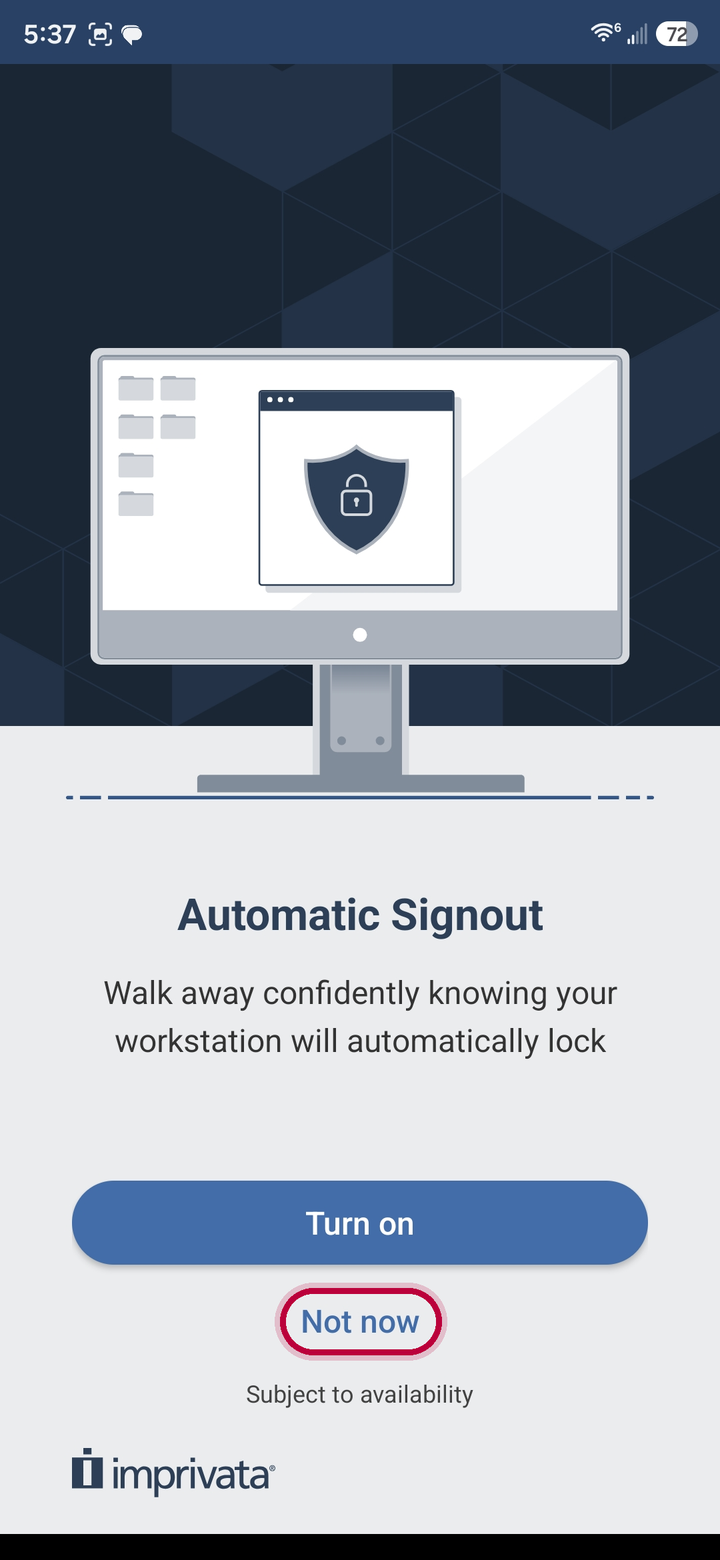
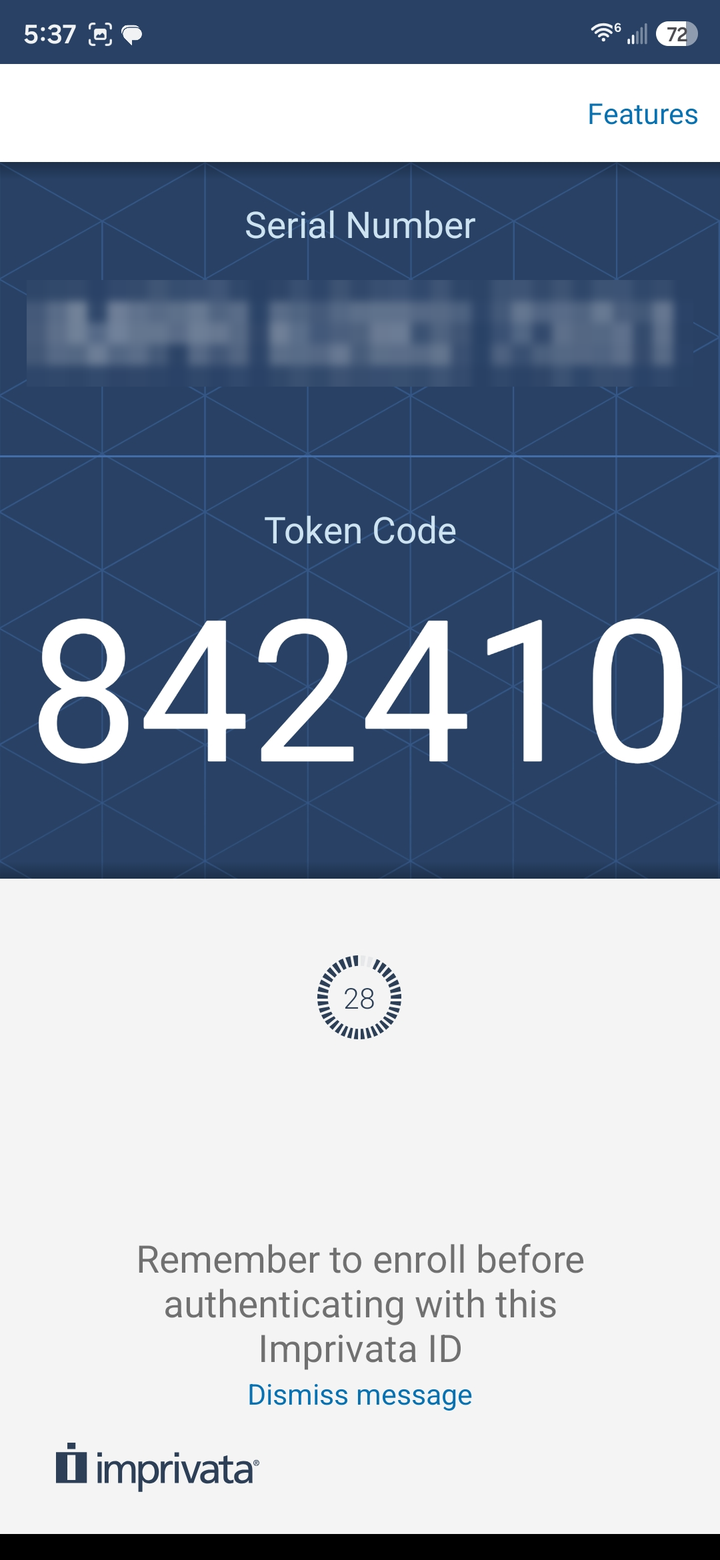
Before you call: install Imprivata ID on your phone
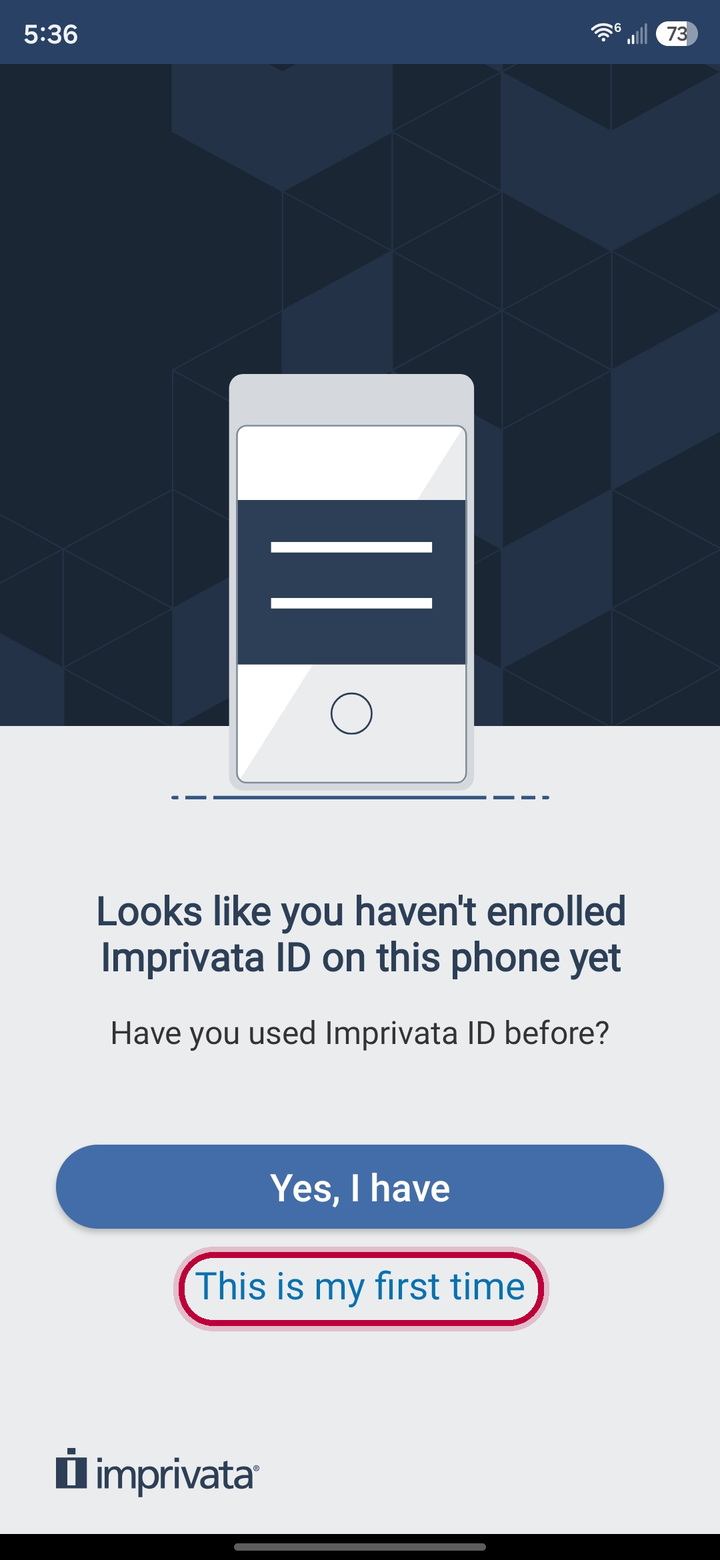
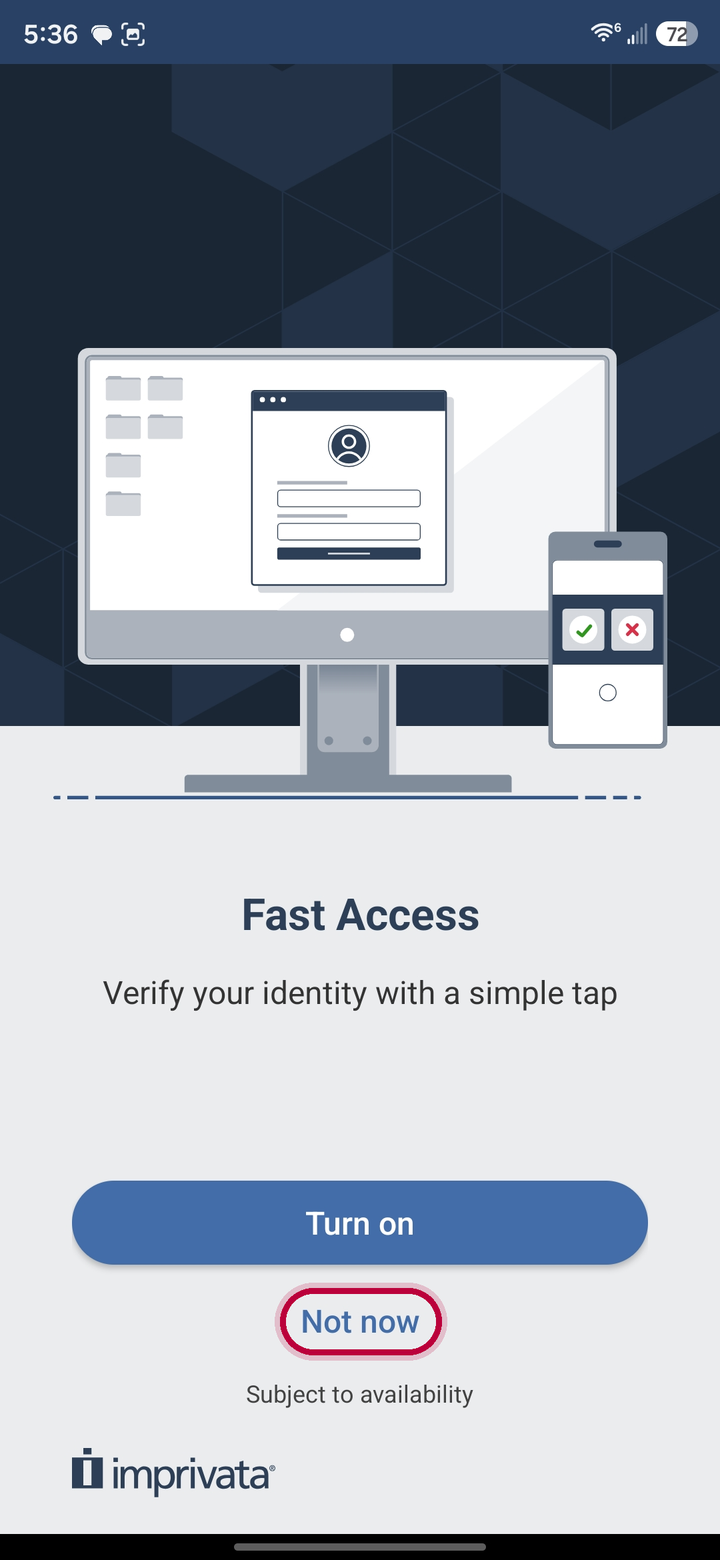
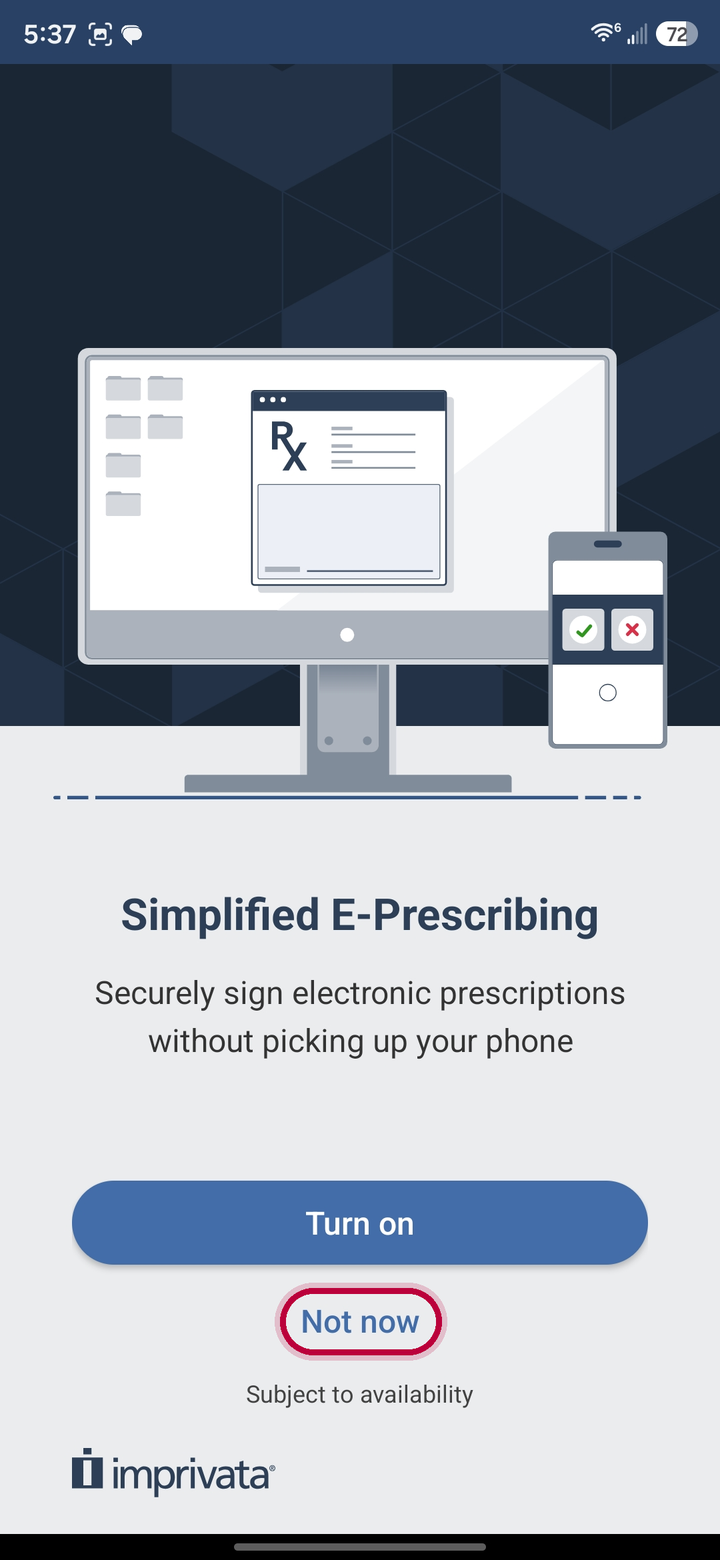
Then connect and call
On a Freeman computer, double-click Freeman Remote Support on the desktop: the orange headset icon. Super users and administrators may see a shield with two arrows instead.

Open a browser on the Freeman computer and go to support.freemanhealth.net.
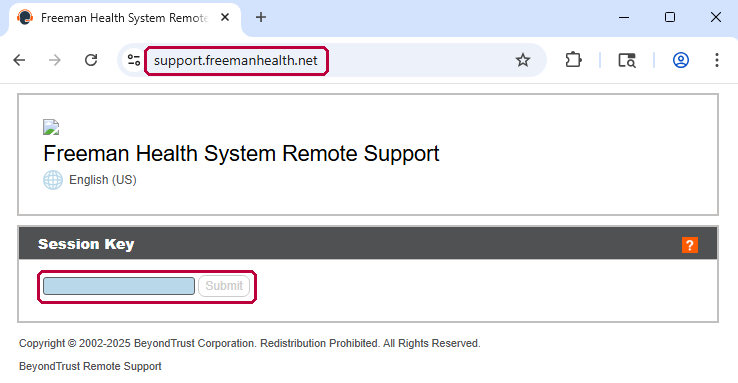
Call 417-347-3227 and ask for Imprivata setup for EPCS. Type the Session Key they give you, then click Next (on the web page, Submit).
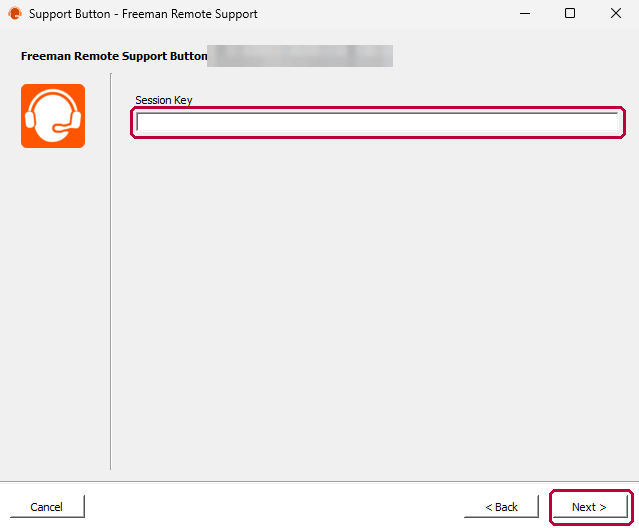
An enrollment supervisor connects to your computer, watches your enrollment, and registers Imprivata ID with you. Keep your phone in hand.
Order, sign, and clear any warnings
Start the way you start any prescription. The controlled-substance screens only appear once you sign.
Enter the controlled medication and confirm the patient's pharmacy is the right one (covered in basic training). Then press Sign Orders.
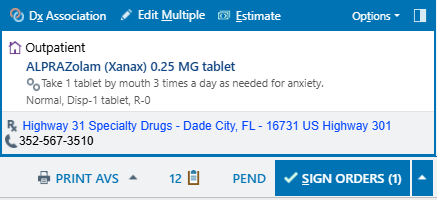
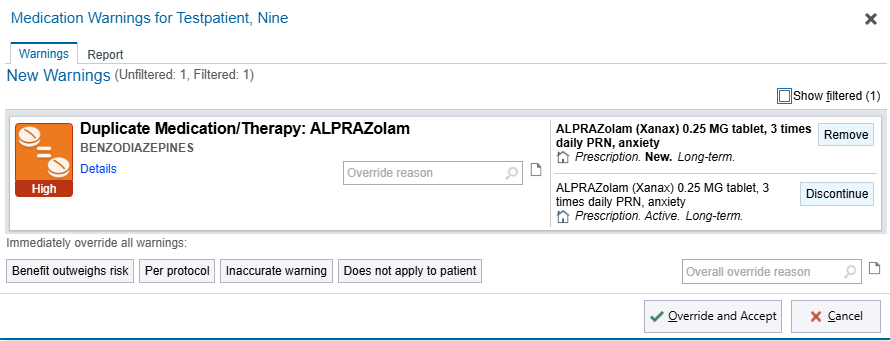
Read each warning and act on it. Remove or Discontinue a duplicate, or give an override reason and press Override and Accept to continue.
Check the PDMP
Before you go further, review the patient's PDMP.
Look for a recent prescription for the same or a similar medication from another prescriber, and for a total daily dose that puts the patient at excessive MMEs. If either is there, stop and reconsider the prescription before you sign it.
Pick your DEA number, mark Reviewed, and Sign
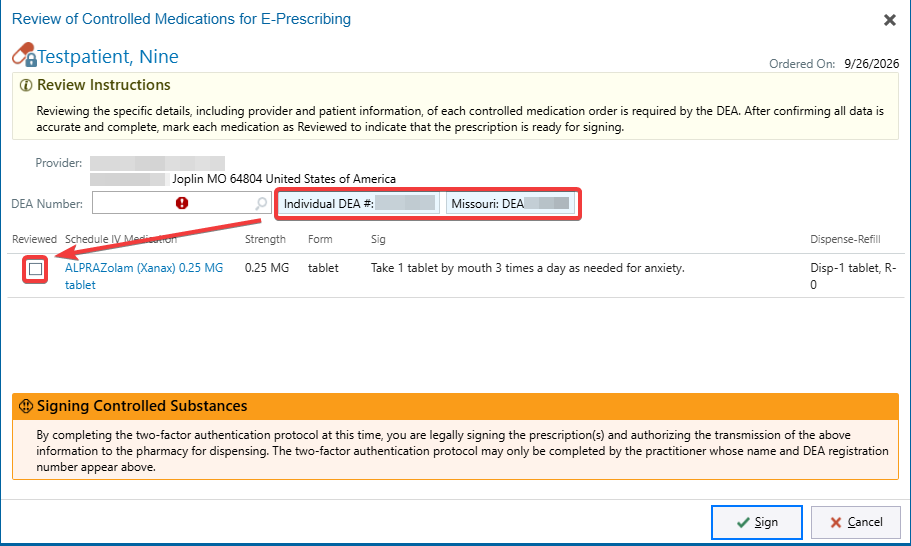
The Review of Controlled Medications for E-Prescribing window is the DEA-required check of each order.
- In DEA Number, pick the right registration: your Individual DEA # or the Missouri one.
- Tick the Reviewed box beside each medication after you have checked the provider, patient, drug, sig, and dispense details.
- Press Sign. Completing the two-factor step that follows is your legal signature and authorizes transmission to the pharmacy.
Confirm your identity on your phone
Imprivata asks for two things: your Freeman password at the workstation, then one tap on your phone.
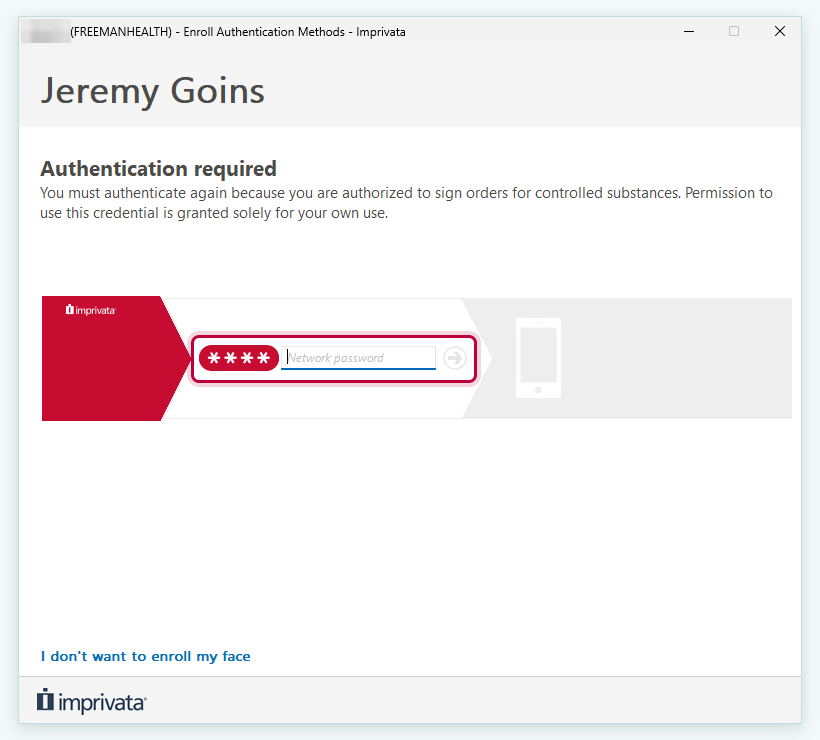
The Confirm your identity bar appears. Enter your Freeman network password and press the arrow.
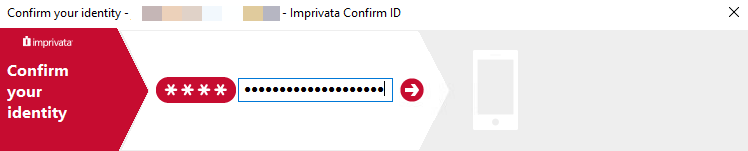
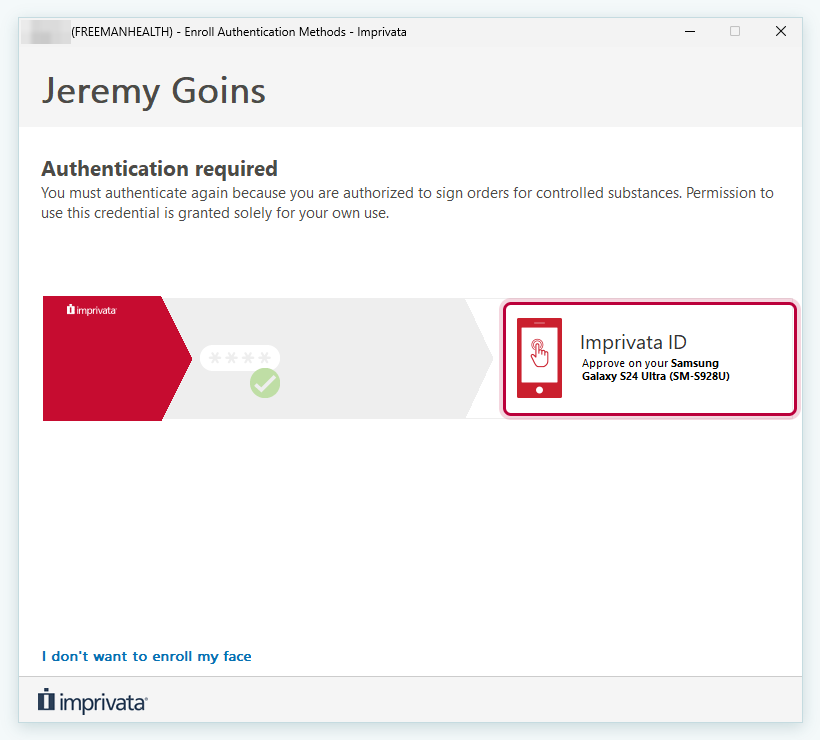
The bar shows a check on the password and "Approve on your" followed by the phone you enrolled. Pick up that phone.

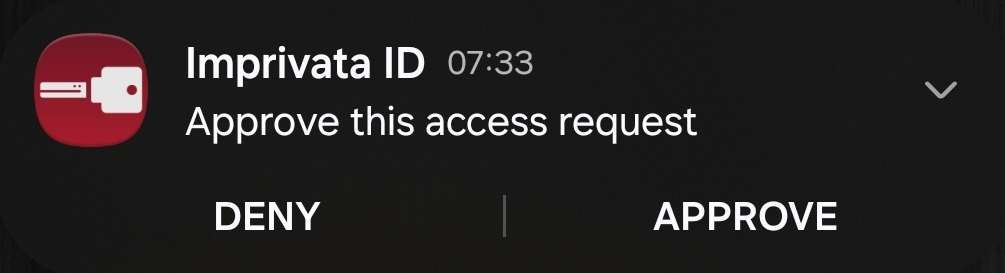
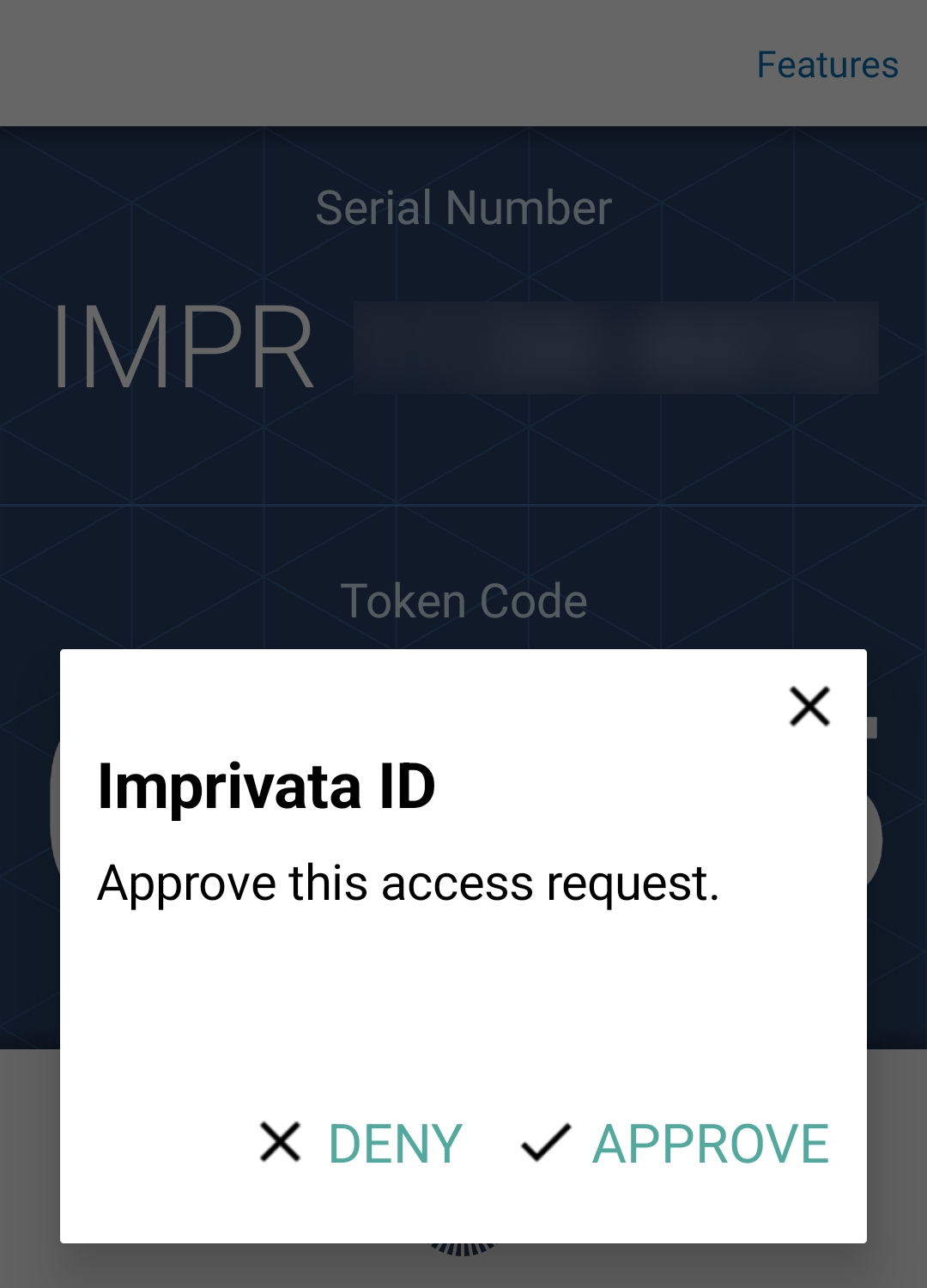
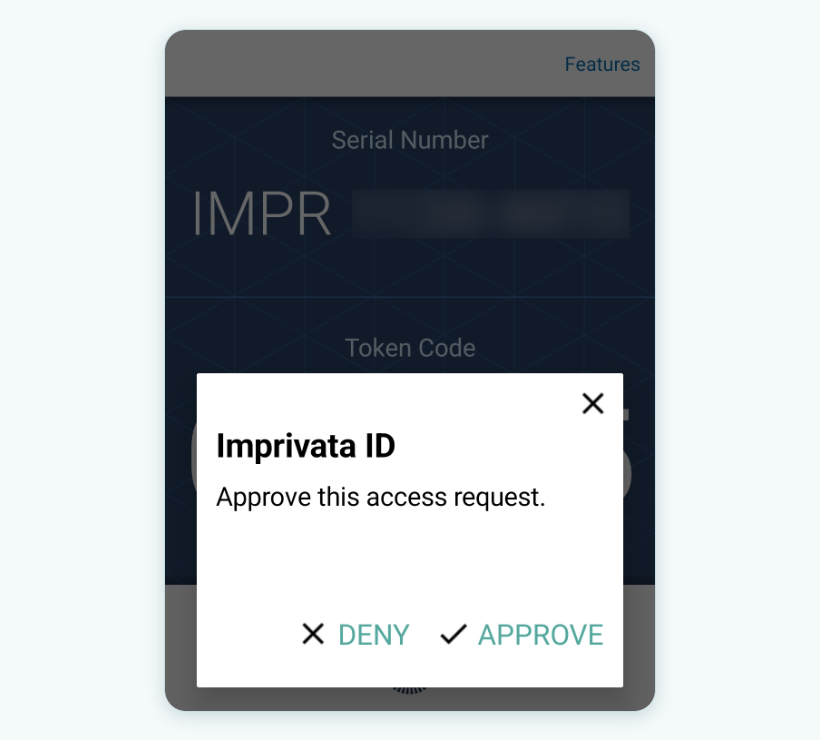
An Imprivata ID notification arrives: "Approve this access request." Press Approve on the notification, or open the app and press Approve there. The prescription signs and transmits to the pharmacy.
EPCS from Haiku and Canto
You can sign controlled substances from Haiku on your phone and Canto on your iPad too. Every controlled prescription needs two factors, every time, but the two are not the same:
- In Hyperspace, at a computer: your Freeman password plus the Imprivata ID approval on your phone (step 4 above).
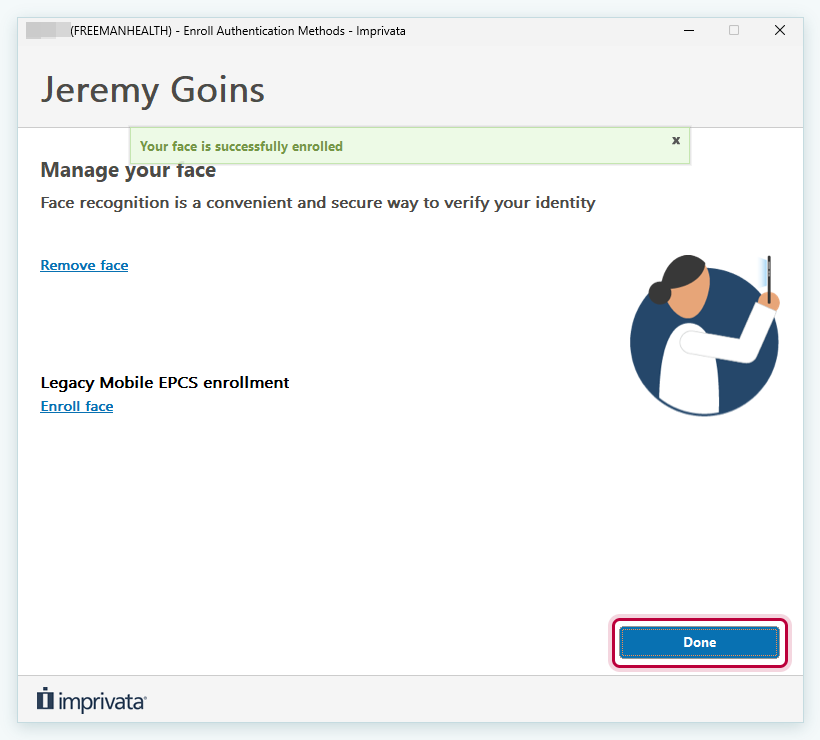
- In Haiku and Canto: your face plus your Freeman password. Face recognition is only for signing controlled substances; you still log in to Haiku and Canto with Duo. Enroll your face once, at a Freeman computer, before your first controlled prescription from your phone or iPad.
Step by step instructions for signing in Haiku and Canto are coming to this page.
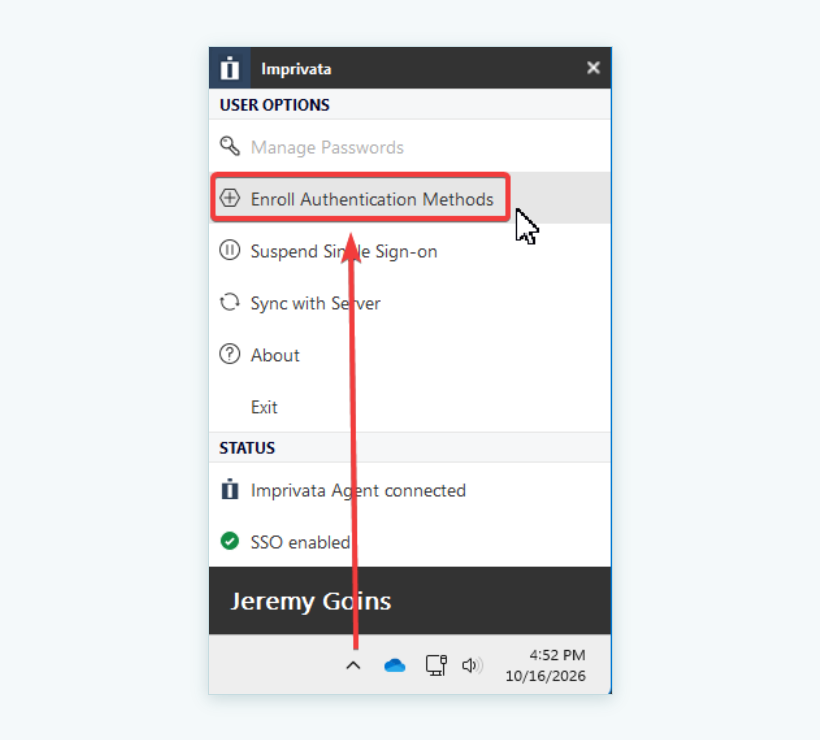
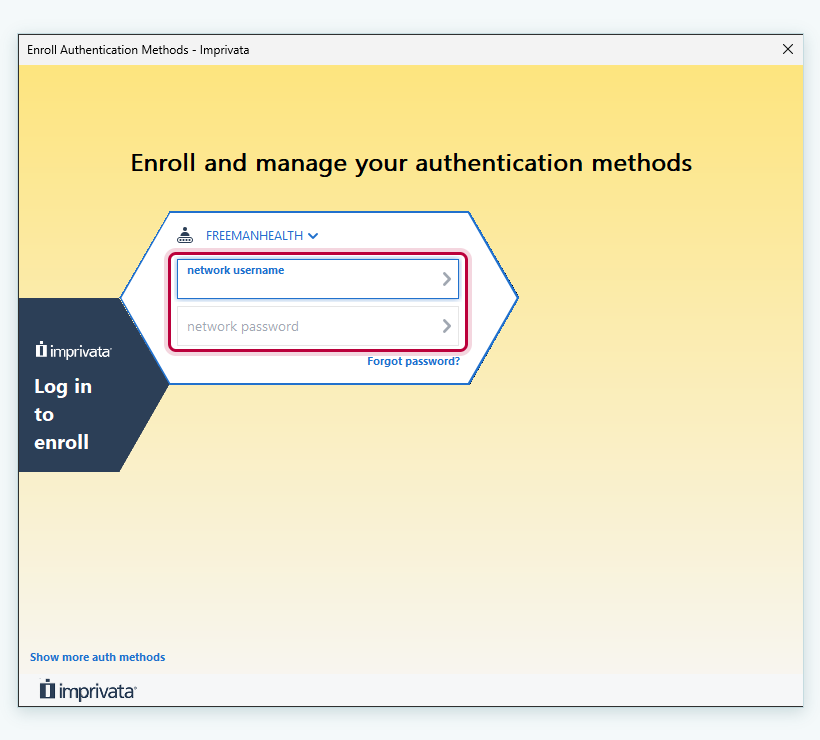
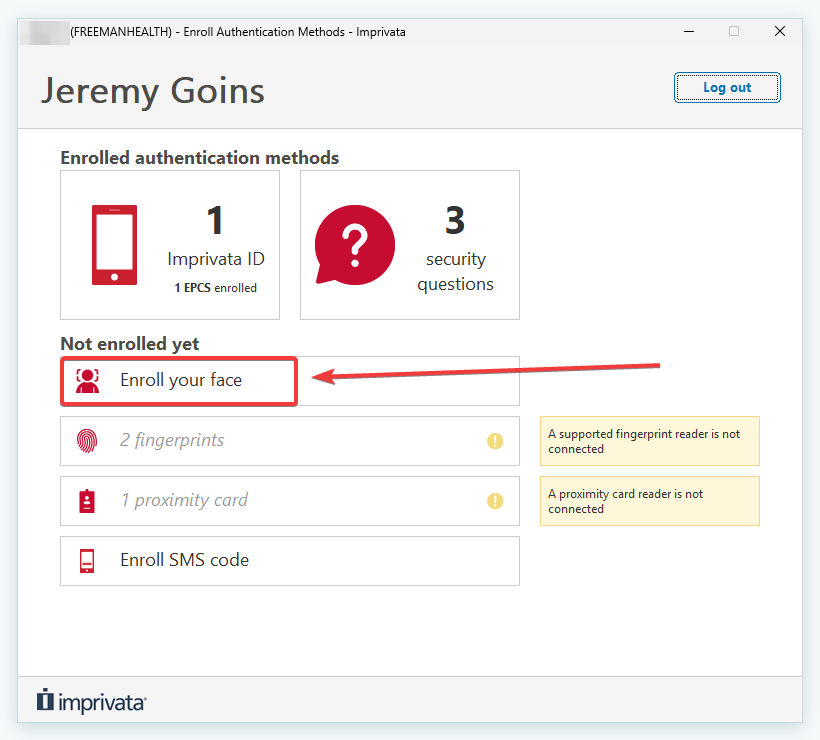
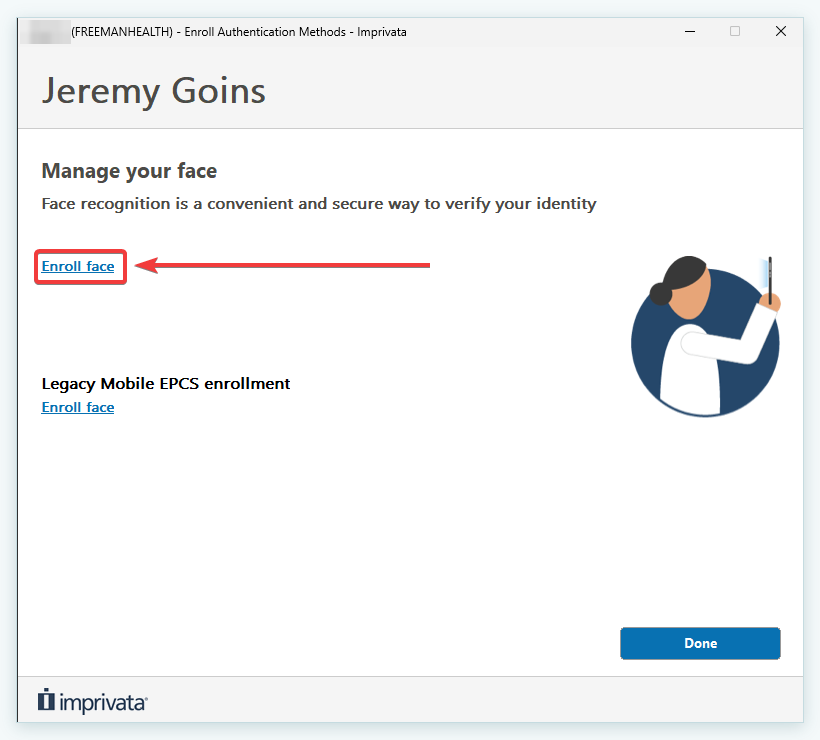
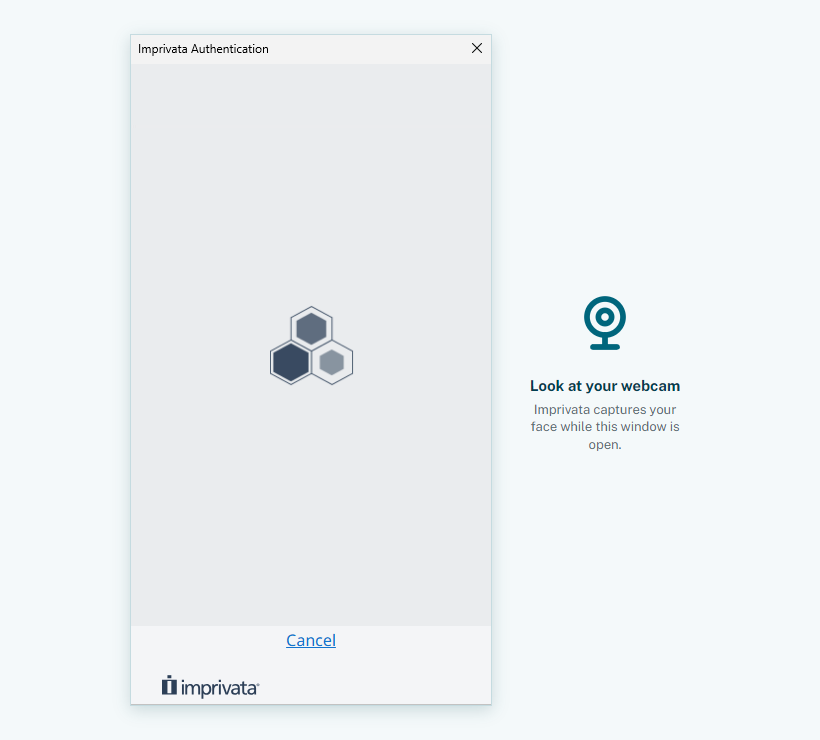
Enroll your face in Imprivata
The screens advance on their own; tap a step to hold it there.
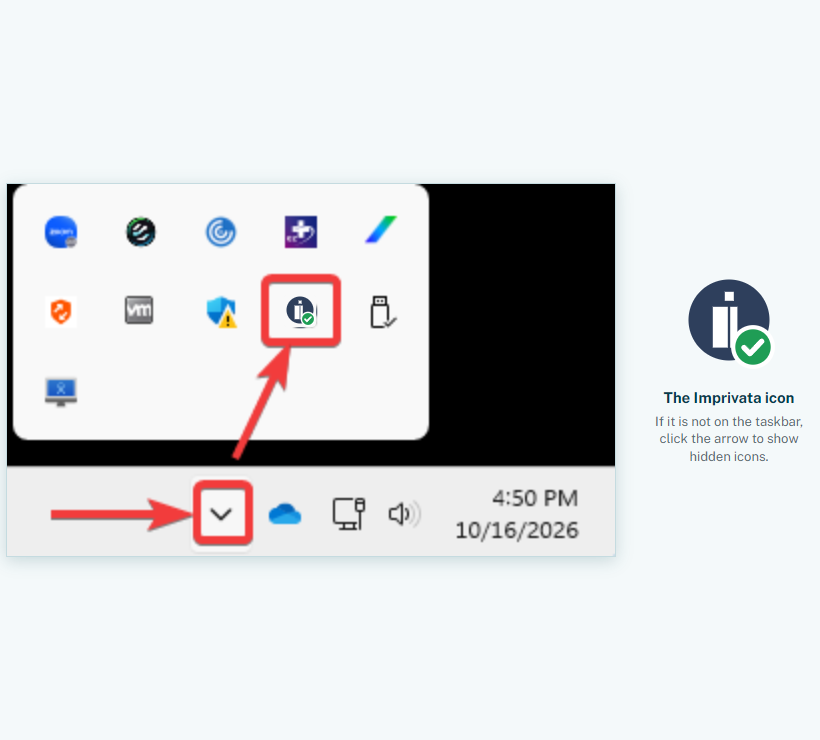
- Imprivata ID already registered and set up with Freeman on your phone. Step 9 of enrollment sends an approval to it; without it, enrollment cannot finish. Not set up yet? Use remote setup.
- A Freeman Windows computer with a webcam, signed in with your own Freeman account.
Need help
Imprivata ID not prompting, or a password problem: call the IT Help Desk at 417-347-4500.
Why two factors
Multifactor authentication (MFA) means proving it is you with two different things at once: something you know, like your Freeman password, and something you have or are, like your phone or your face. A stolen or guessed password alone is not enough. For you, that means no one else can sign a controlled substance prescription under your name and DEA registration. For your patients, it keeps their records and prescriptions out of the wrong hands. That is why the DEA requires two factors for every controlled substance prescription.