Tips and Tricks
Short Epic moves that save clicks. Each one is a few steps with the screens you will see. Have one worth sharing? Send it through Epic Suggestions.
Patient Management for Providers →Inpatient tip sheet: the right login department, team sign-in from Amion, patient lists, the treatment team, consults, and finding who is on call.Create an order panel
An order panel is a saved group of orders you place together: medications, labs, imaging, nursing instructions, any mix you routinely order as a set. Build it once from the orders already on your screen and it lands on your preference list.
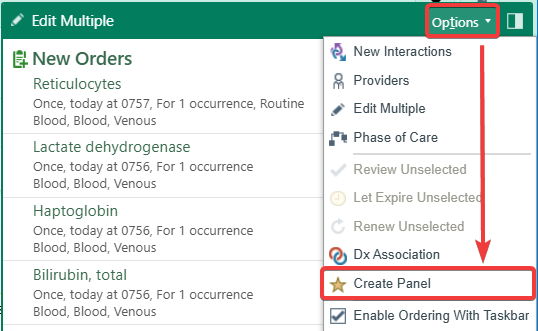
In New Orders, select the orders you want in the panel.
Click Options in the top right of the orders pane and choose Create Panel.
Name the panel and accept. It appears on your preference list with a star, ready to pull in with one click next time.
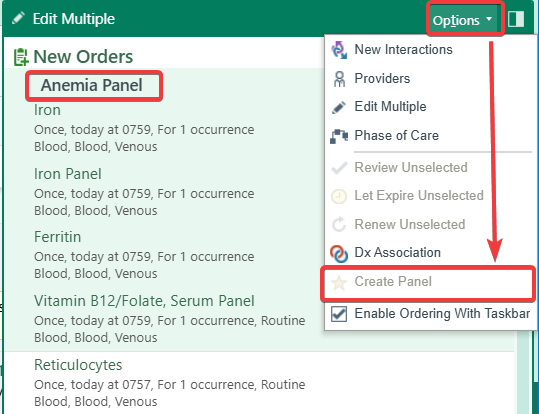
A panel cannot contain another panel. If the orders you selected already include one (an Iron Panel, a Vitamin B12/Folate Panel), Create Panel is grayed out. Take the panel out of the selection, or add its individual orders instead, and the option comes back.
Edit an entry on your preference list
Your preference list is where your saved orders and panels live. You do not have to rebuild an entry to change it.
Open your preference list from the order entry field and find the entry.
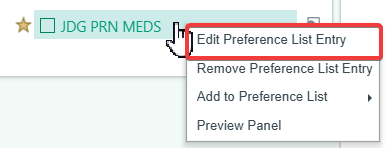
Right-click it and choose Edit Preference List Entry.
Change the name, the defaults, or what is in a panel, then accept. Remove Preference List Entry and Preview Panel sit in the same menu.