
Home › Epic › Haiku and Secure Chat Setup › Login Guide
Haiku and Canto Login Guide
This step-by-step login guide opens on go-live day, Saturday, October 24. Until then, follow Haiku and Secure Chat Setup.
Haiku and Canto Login Guide
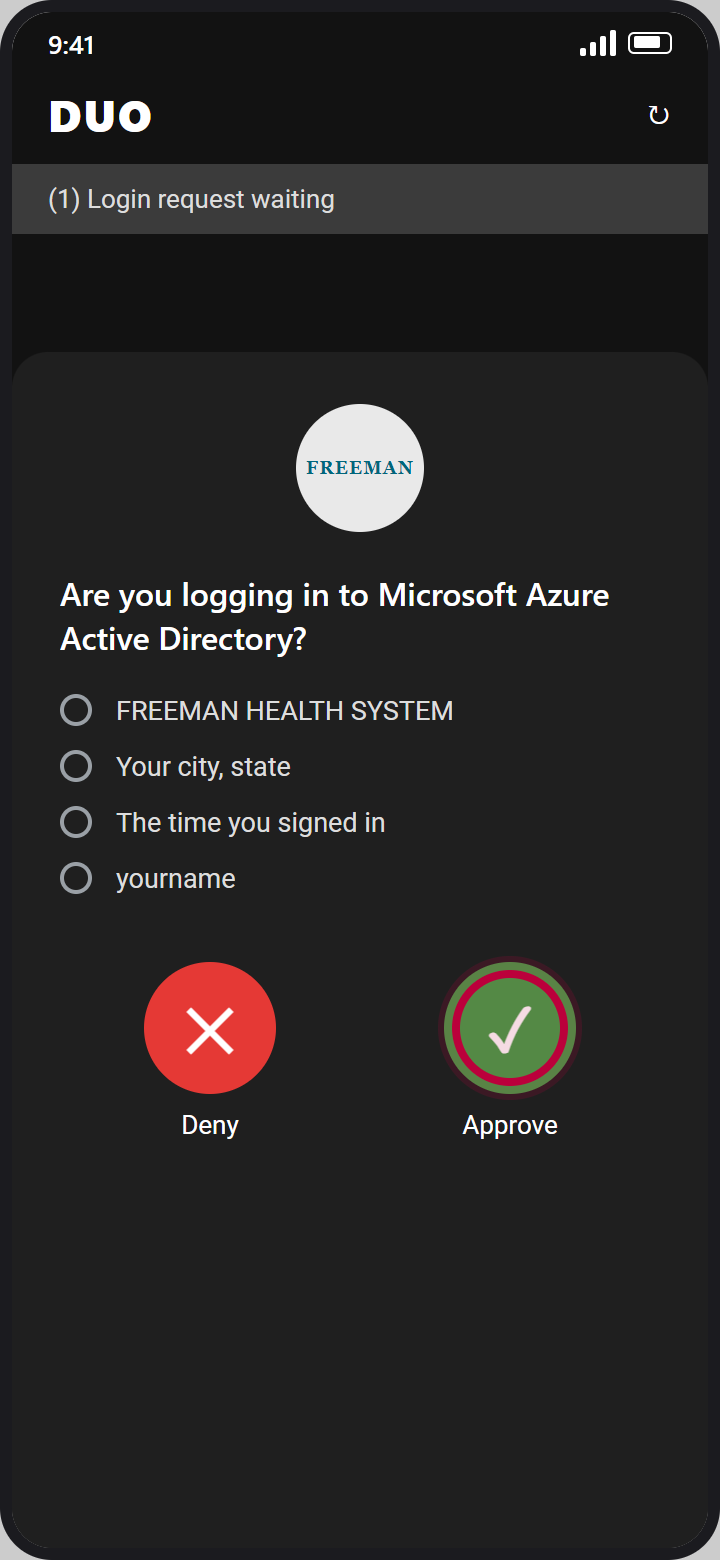
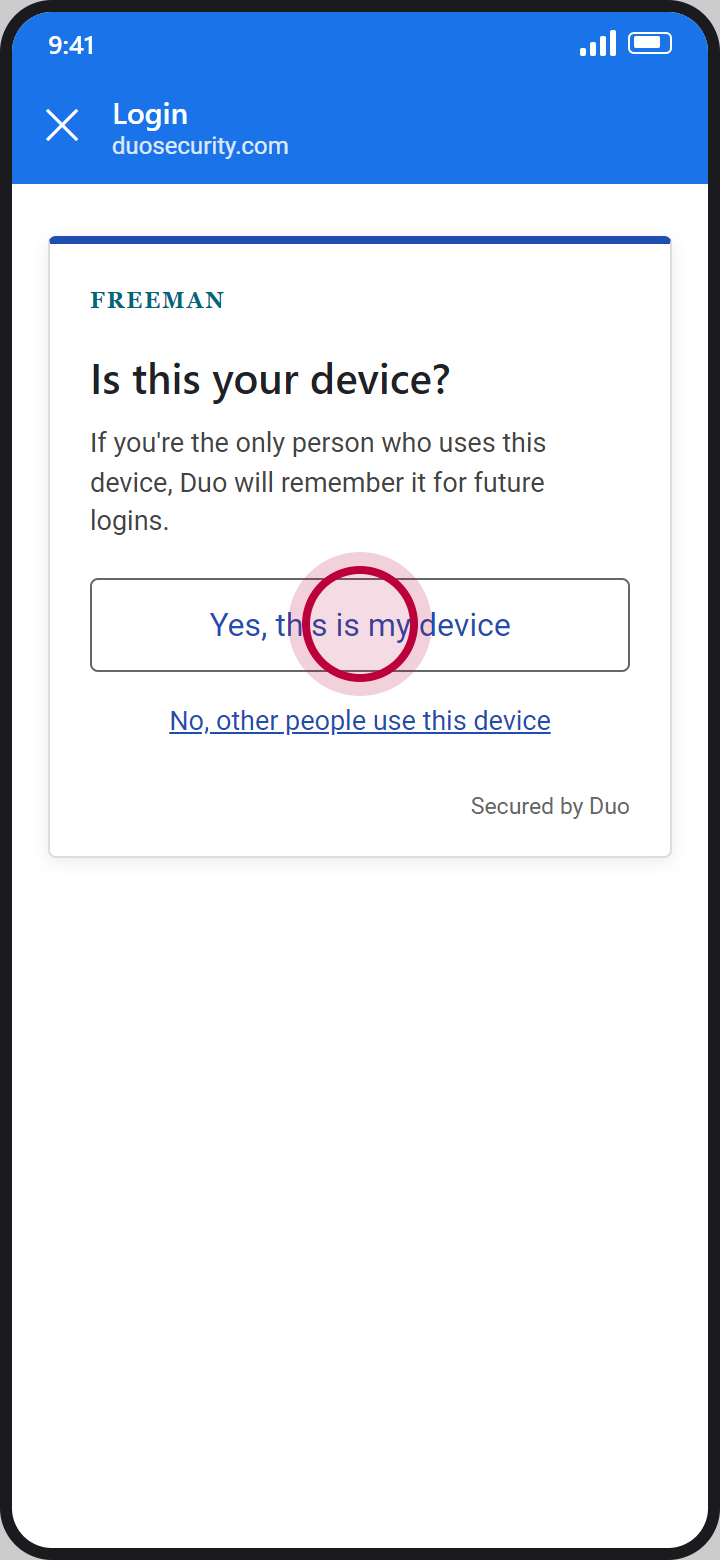
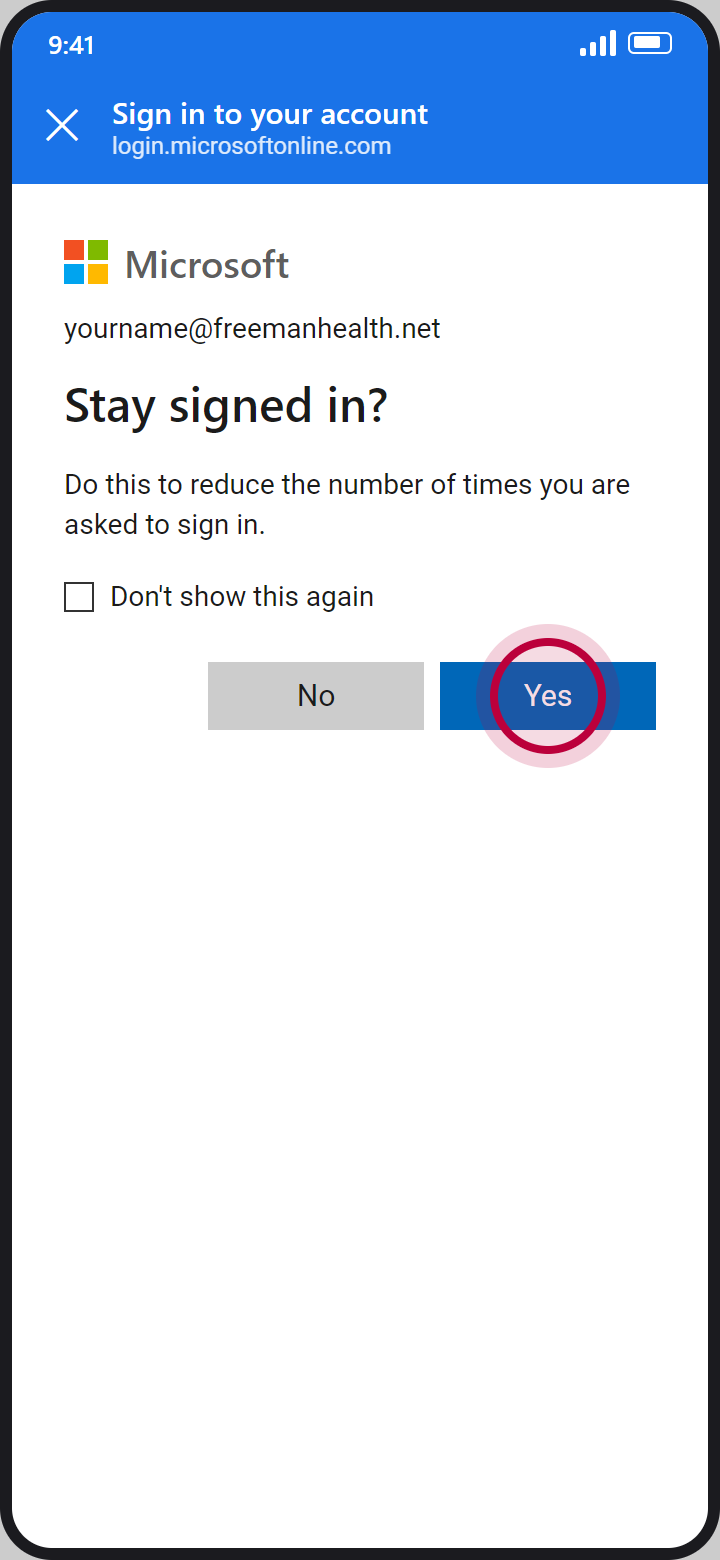
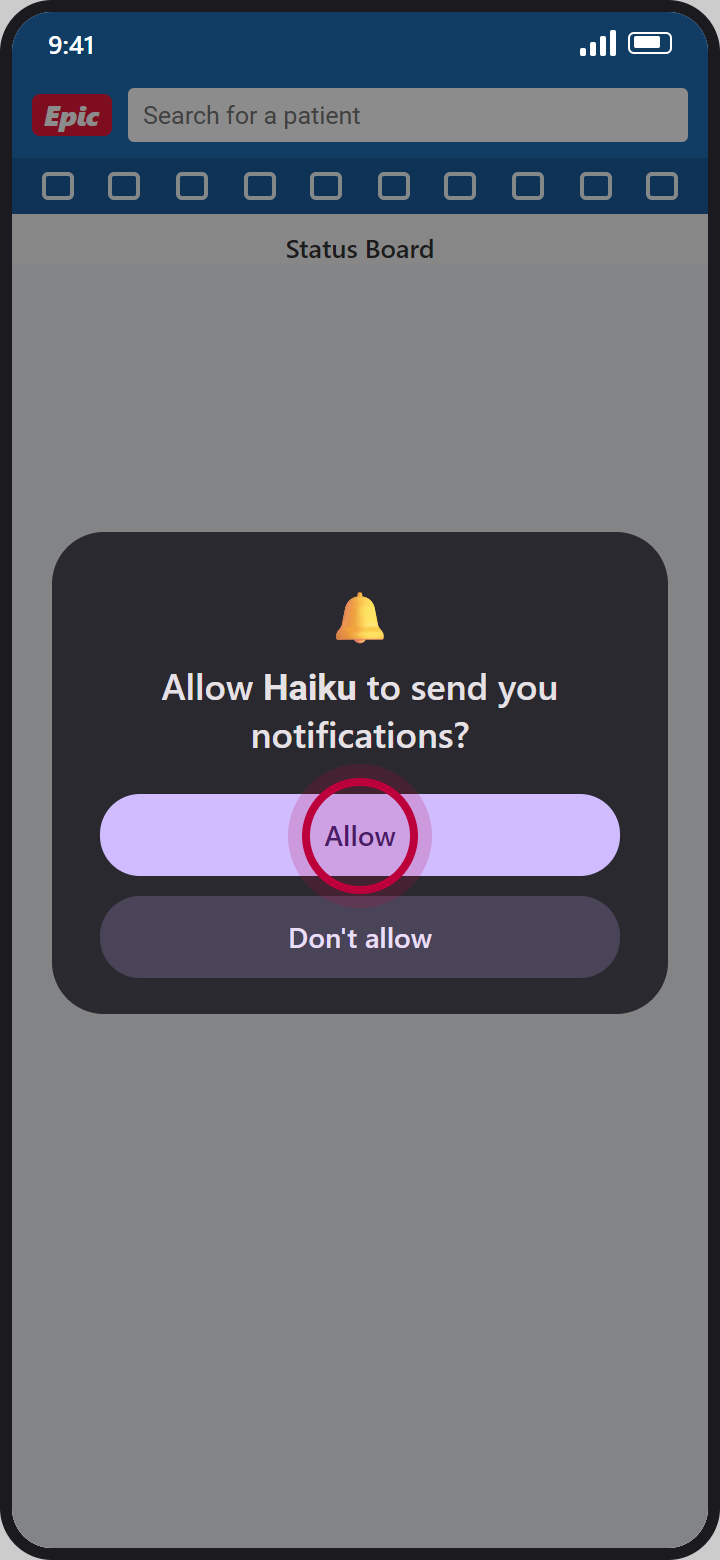
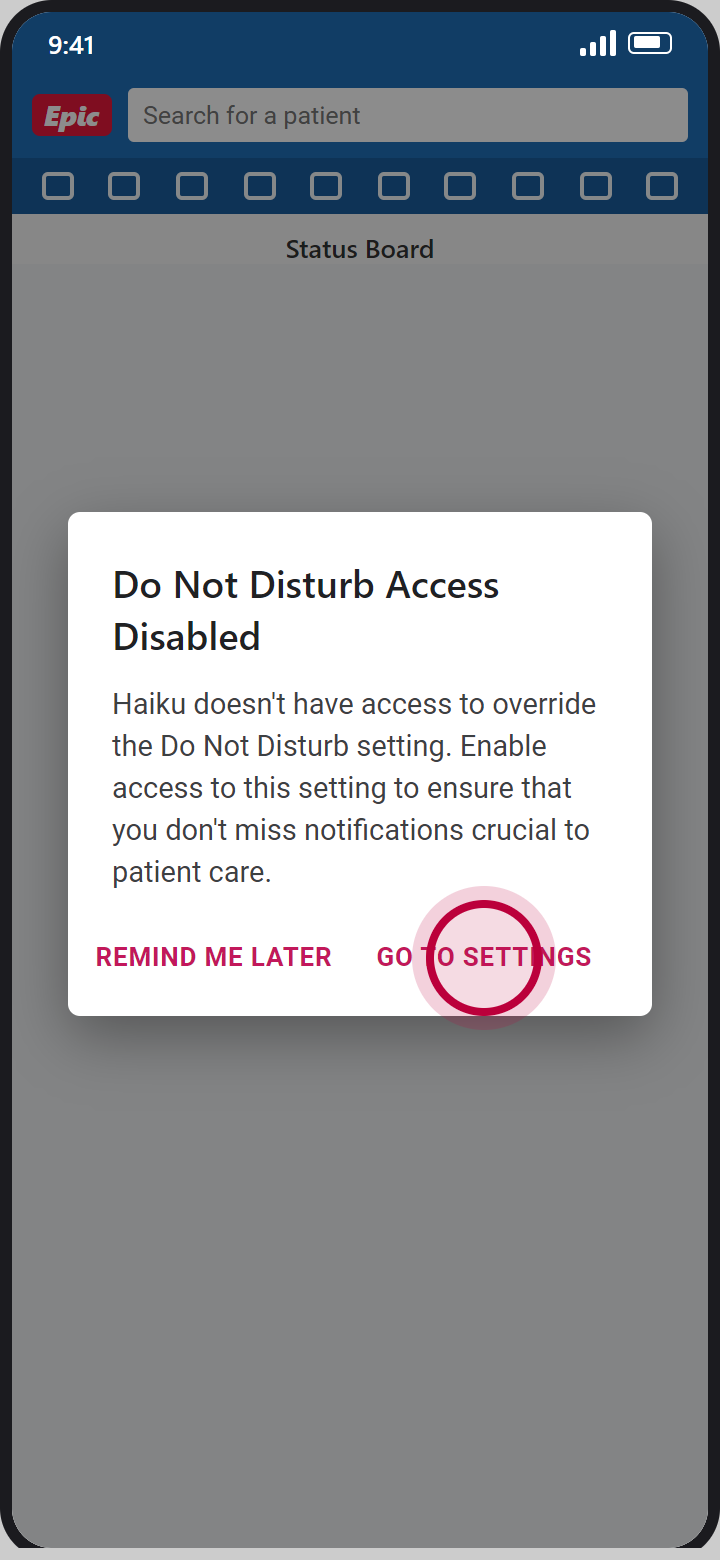
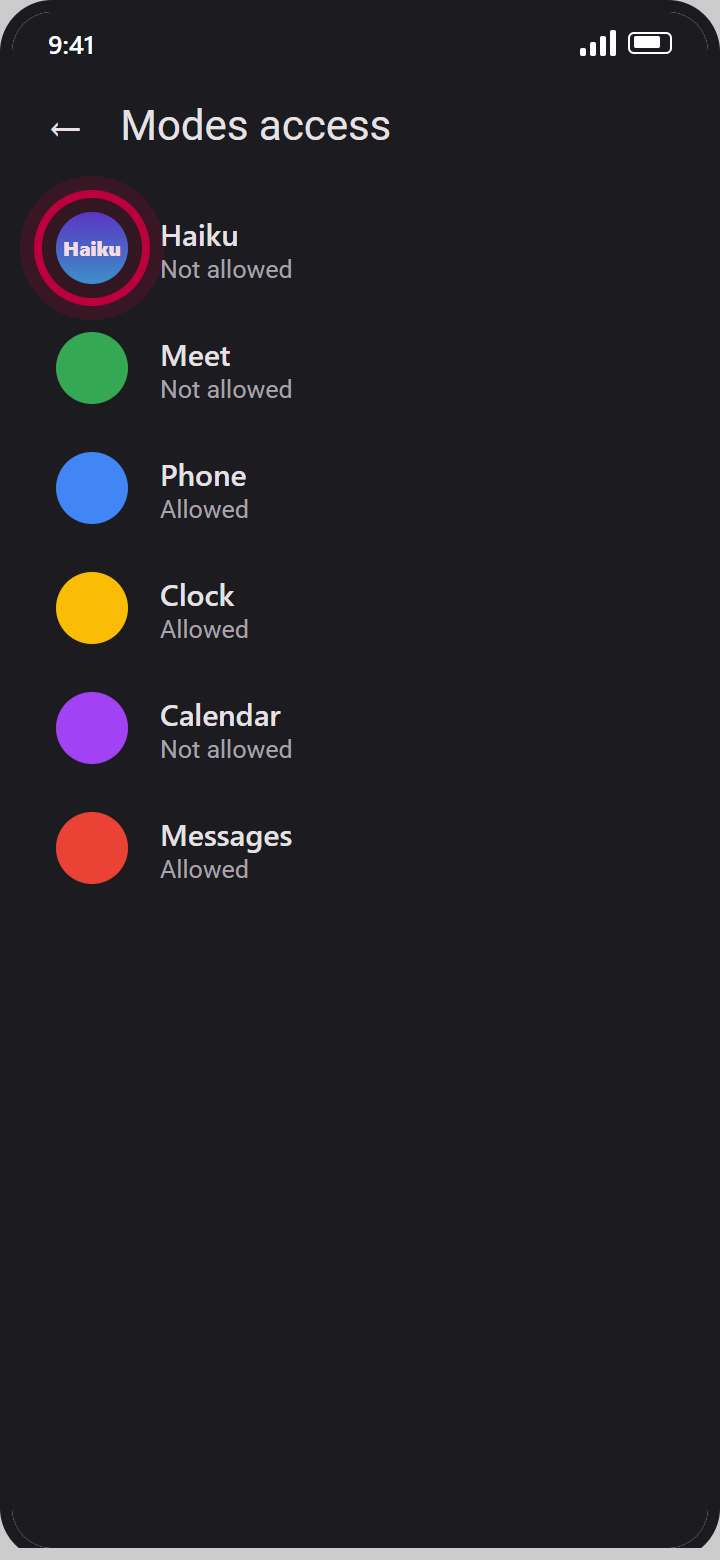
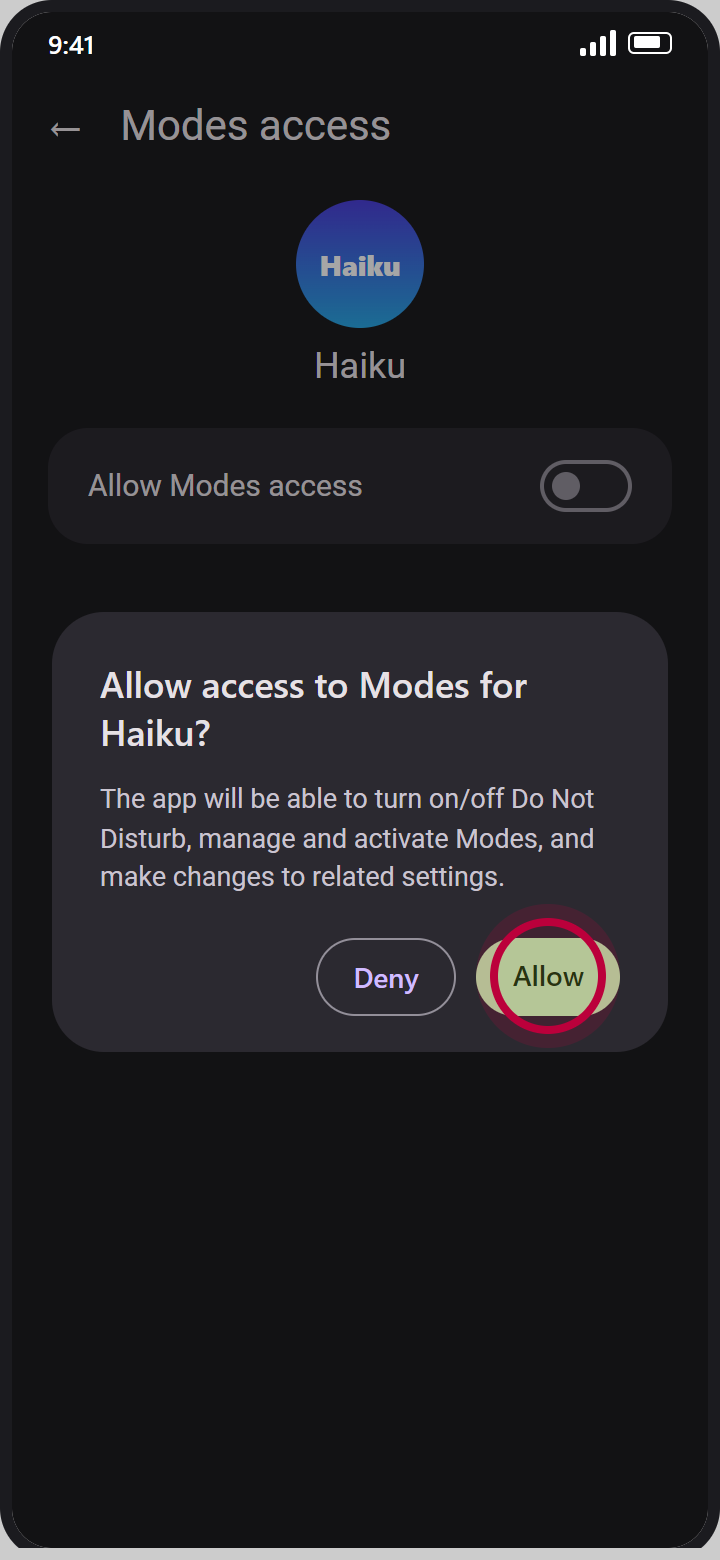
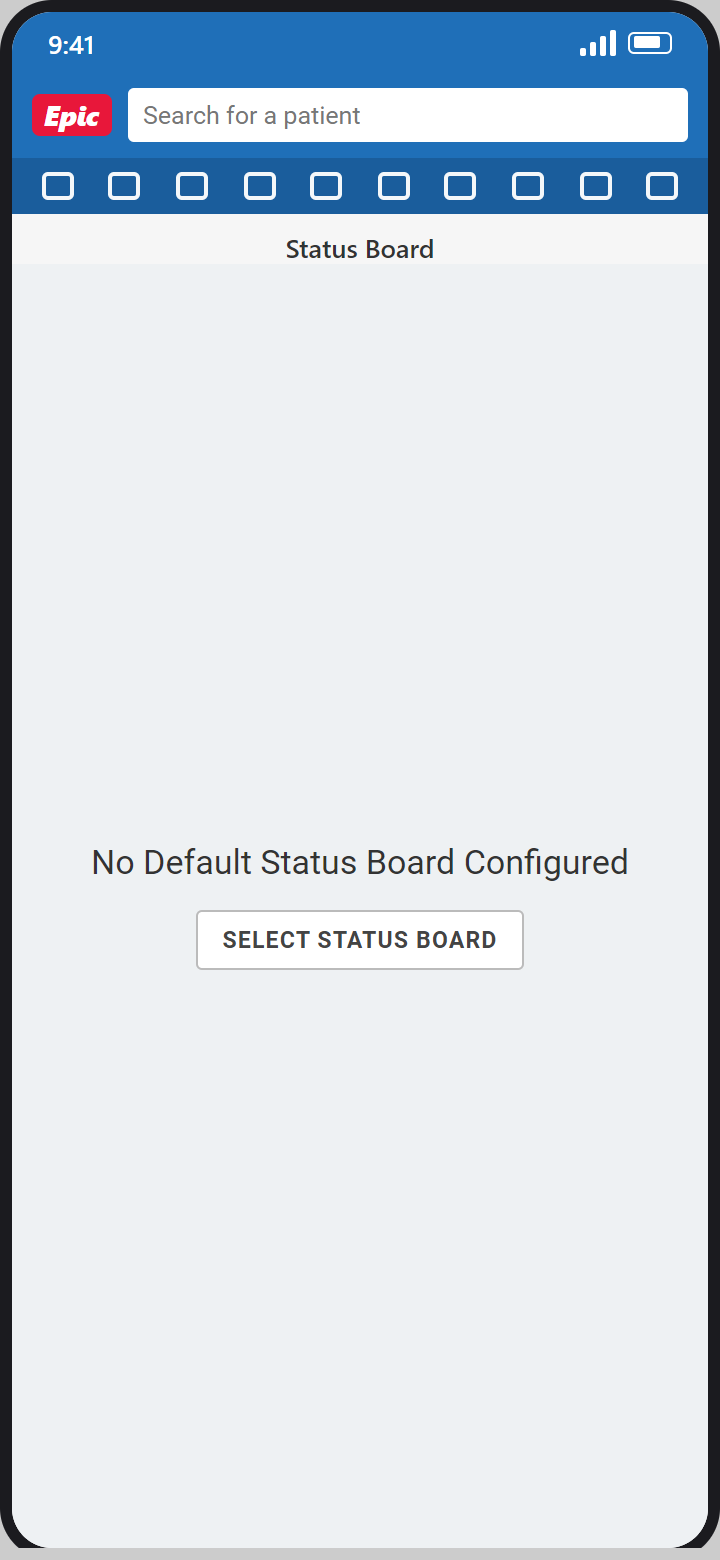
Every screen from the app store to your first sign-in, including multifactor authentication (MFA). The screens advance on their own; tap a step to hold it there. A red circle marks where to tap.
The screens show Haiku on an Android phone. Haiku on an iPhone and Canto on an iPad look a little different but follow the same steps.
Sign-in works only after your BYOD and Remote Access request has been submitted and processed, and after your Epic training or test-out.
Get the app
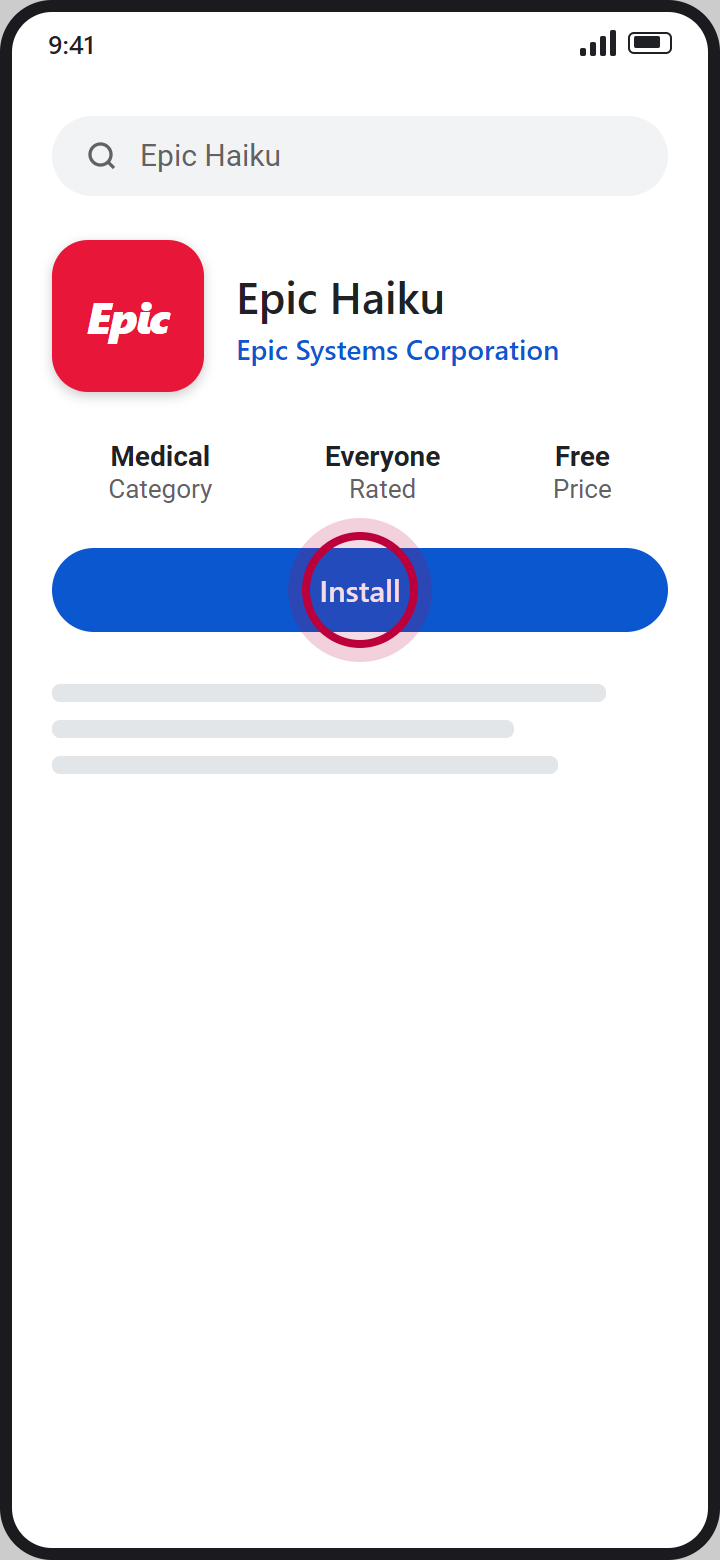
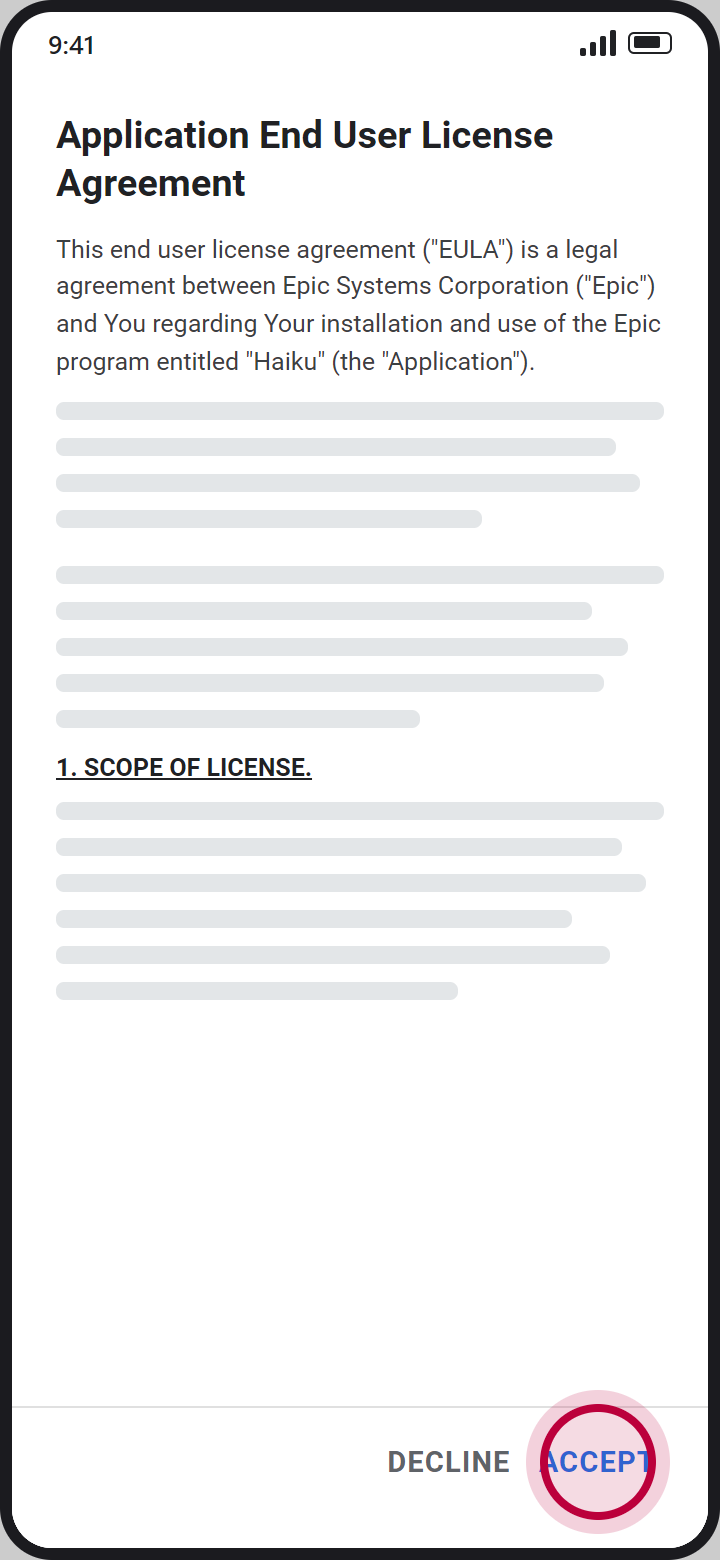
Steps 1 and 2, on the phone or iPad you are setting up.
3. Scan the QR code for your app
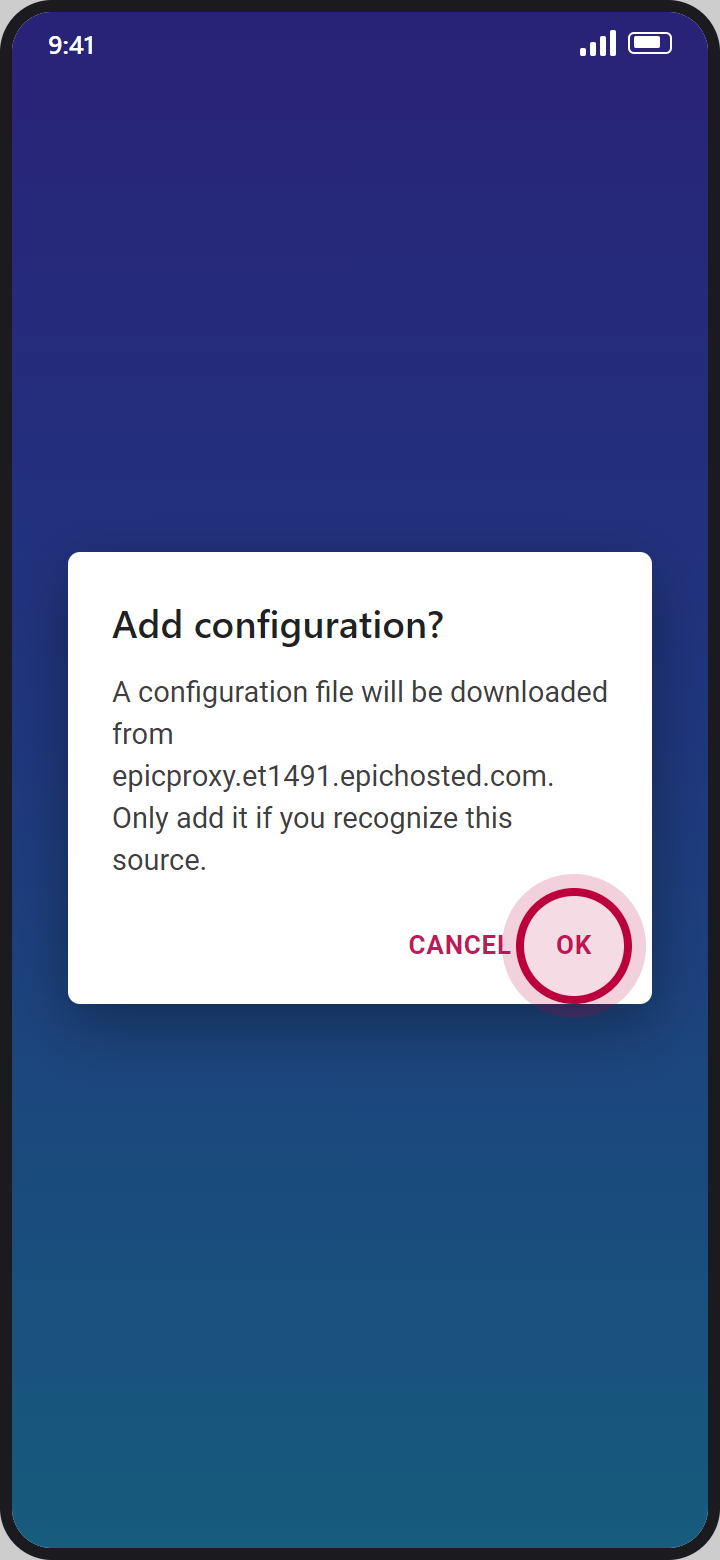
Use the Haiku code on a phone and the Canto code on an iPad. Scan it with the device's camera. The app opens and asks to add the configuration: tap OK.
Reading this on the phone you are setting up? Open this page on a computer so you can scan the code.


Sign in with MFA
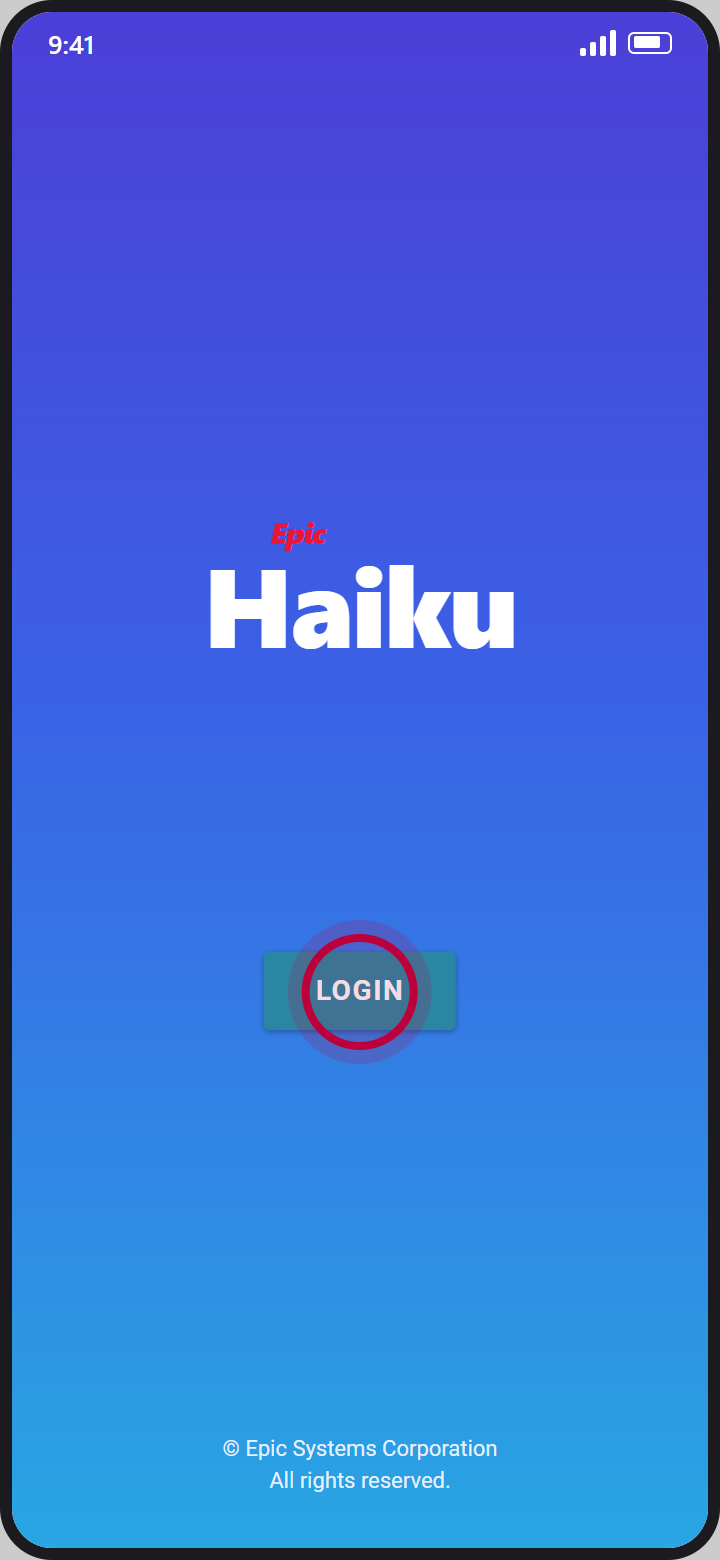
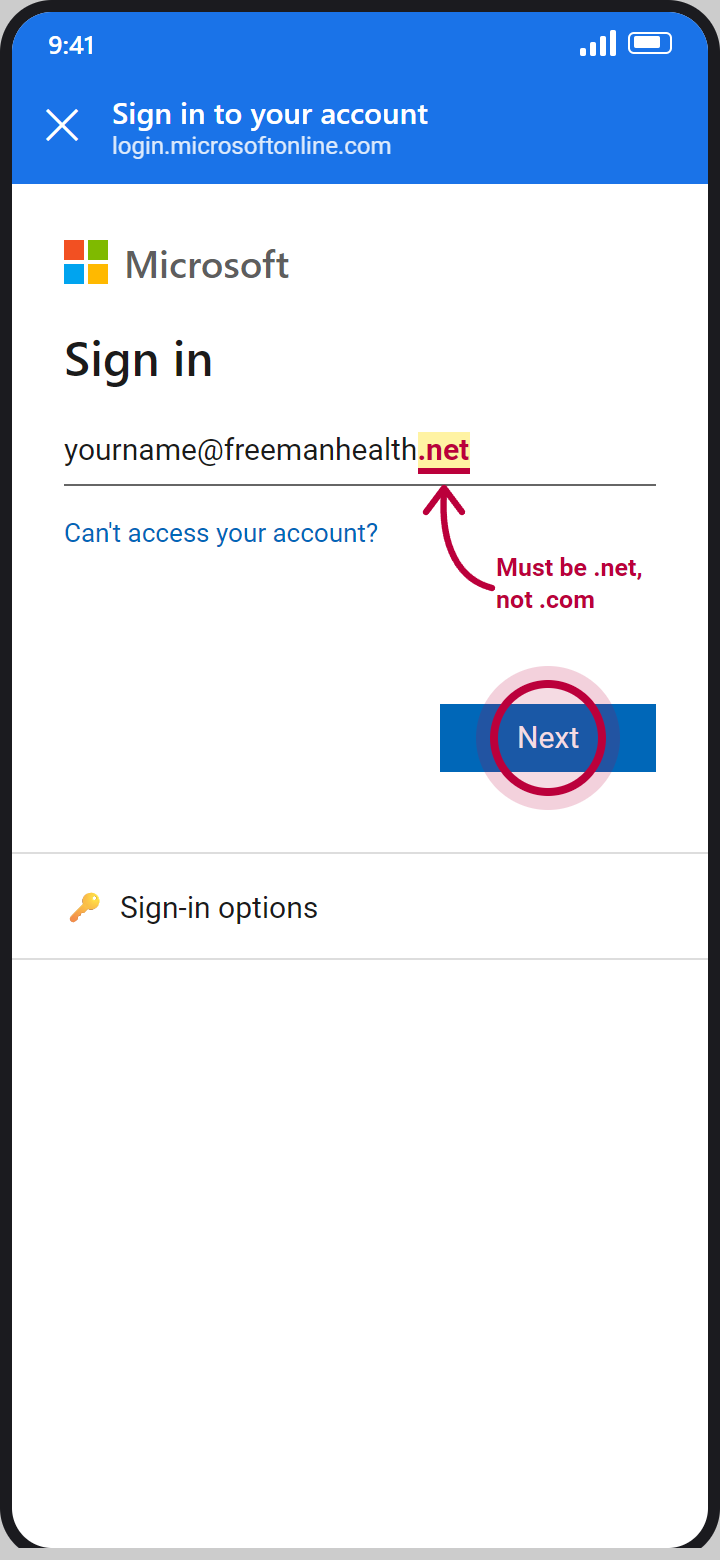
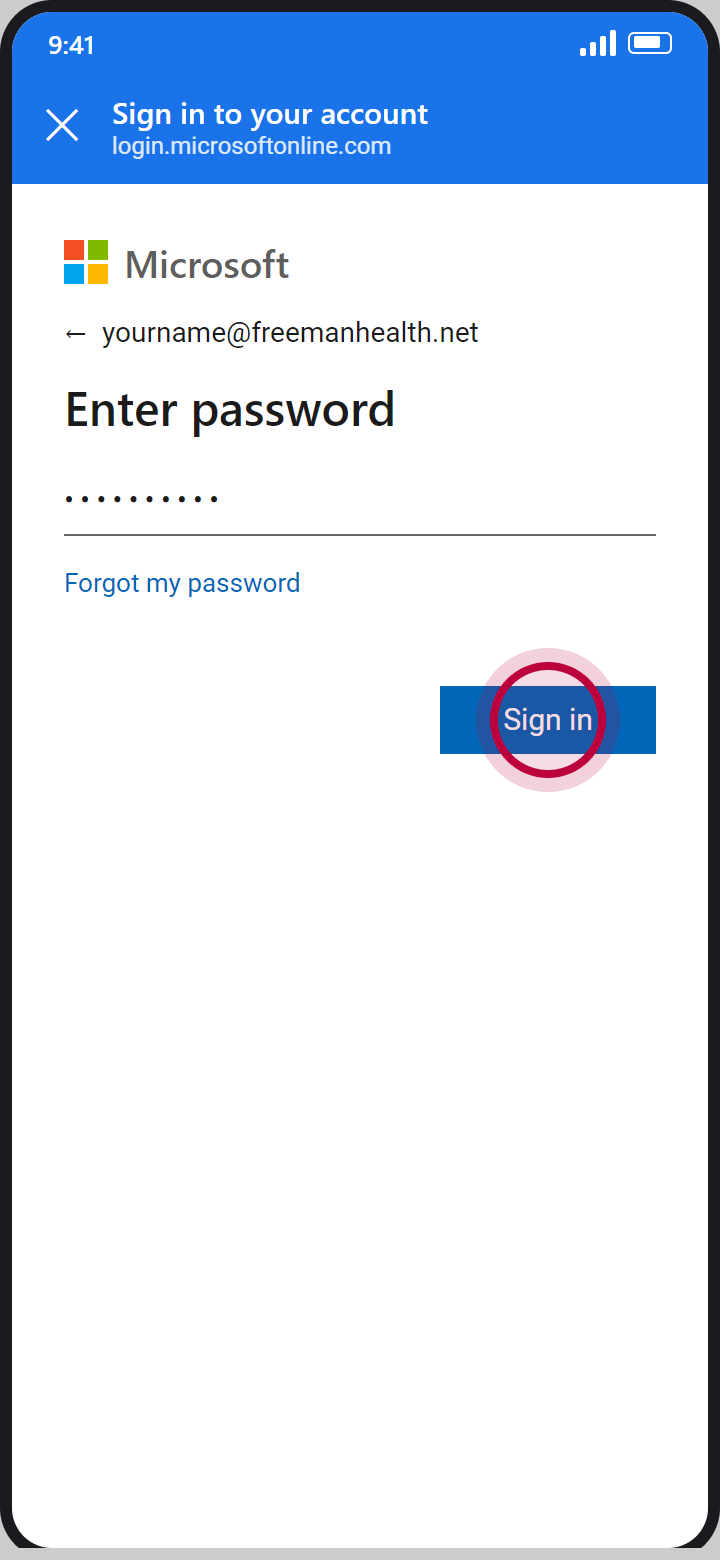
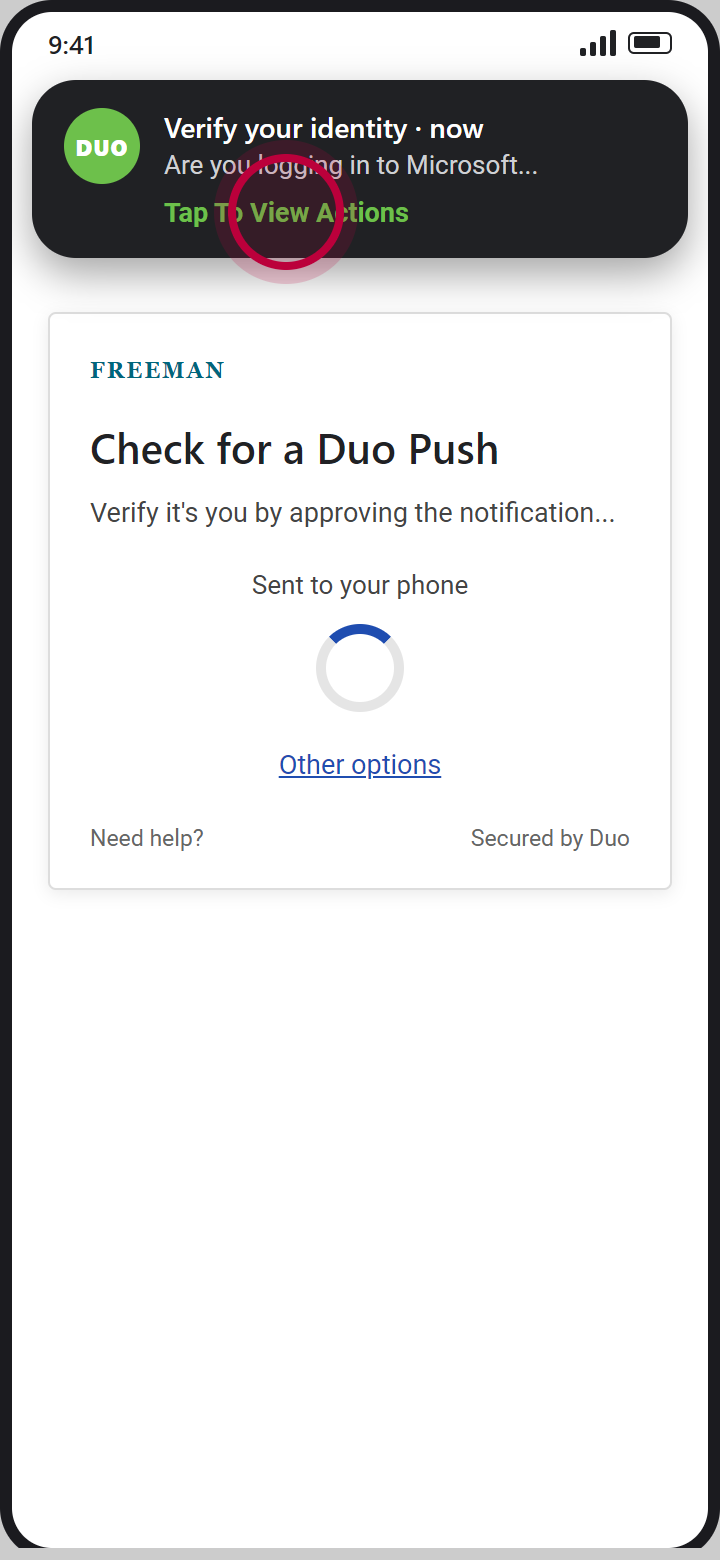
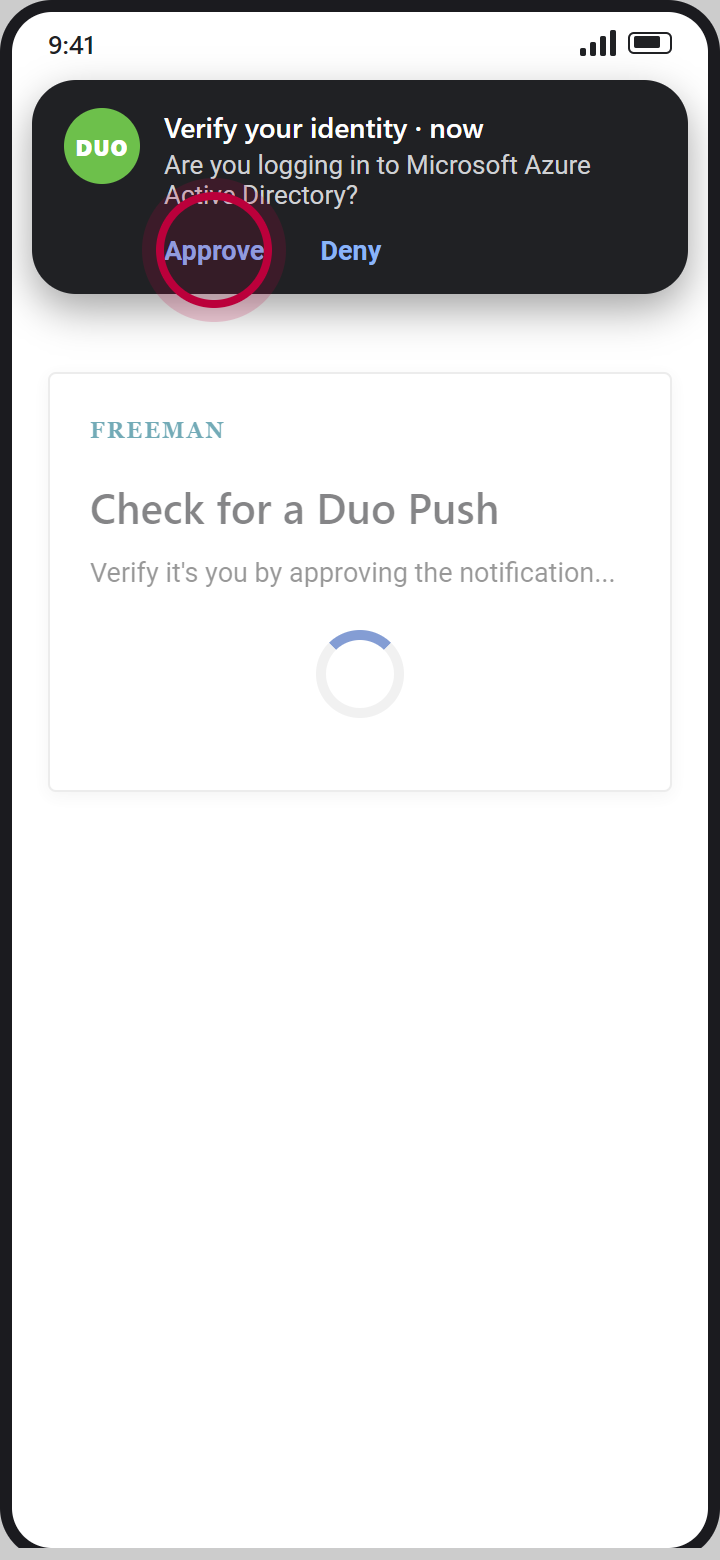
Steps 4 to 10: your Freeman username and password, then approve the sign-in on your phone.
Finish setup
Steps 11 to 13, back in Haiku.
Stuck at any step? IT Support Help Desk 417-347-4500 or fhsitsm.saasit.com.