
Home › Epic › Tips and Tricks › Patient Management
Patient Management for Providers
For physicians, advanced practice providers (APPs), residents, and fellows who care for patients in the hospital. How you are signed into your team, how to find your patients, how to keep the treatment team up to date, how consults appear on the team, and how to find and contact the right provider.
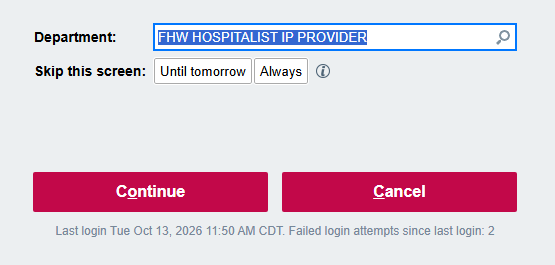
Log into the right department
The department you log into determines your workspace and which clinical content you see, so choose it based on where you work.
| IF YOU WORK | LOG INTO |
|---|---|
| Only in an outpatient clinic | Your clinic department |
| Only in the hospital | Your facility plus specialty virtual department. These are named facility prefix + specialty + IP (inpatient). |
| In both a clinic and the hospital | Your clinic department |
How you are signed into your team
Your team assignments come from Amion. When you are on the call schedule in Amion, Epic automatically signs you into your team for that shift. You do not need to sign in when you log in, and you won't see a sign-in pop-up.
- Amion schedules import into Epic every 15 minutes.
- Being signed into a team adds you to that team's patient list, makes you show as an active team member, and identifies you as the first contact when you are designated that way on the schedule.
- When your shift ends in Amion, you are no longer shown as an active member of the team.
Make all schedule changes in Amion, not in Epic. Manual changes in Epic are overwritten the next time the schedule imports.
If you are not on the call schedule
If you are rounding with a team but are not on the Amion schedule, you won't be signed into the team automatically. You can use the sign-in button from patient lists to associate yourself with your assignment. Residents use Sign In this way to take their patient assignments.
Other providers can still find and message you through Secure Chat. Update your Secure Chat status when you are off shift so people know not to message you.
If your shift changes
- Update the shift in Amion. The change appears in Epic within about 15 minutes.
- To add a new team or shift, or to make changes beyond names and times, submit a ticket through IT Service Management (ITSM) at fhsitsm.saasit.com. In ITSM choose Amion and complete the request.
Find your patients
Use the Patient Lists activity to see the patients you and your team are responsible for.
- Each team has its own patient list that shows every patient assigned to that team.
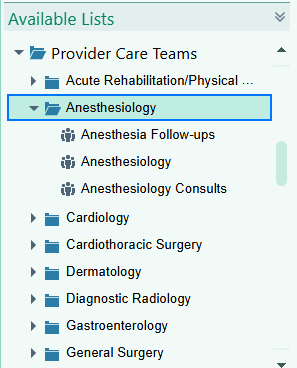
- Patient list folders are named after each hospital. When lists at different hospitals share a name, the list name ends with the hospital abbreviation: FHW (Freeman Hospital West), FHE (Freeman Hospital East), FNH (Freeman Neosho Hospital), or FFS (Freeman Fort Scott Hospital).
- New results appear as icons on your patient lists and in the patient's Storyboard. Results are not routed to your In Basket during the admission.
Not sure which list to use? Look in the folder for the hospital where you're working, then find your team's list. You can find these folders under Available Lists › Provider Care Teams › your specialty.
Keep the treatment team up to date
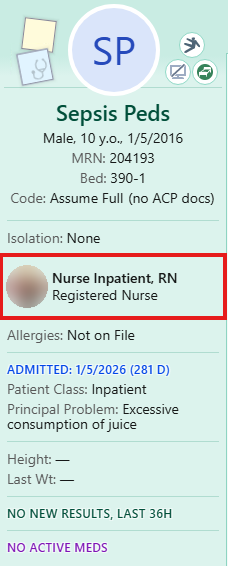
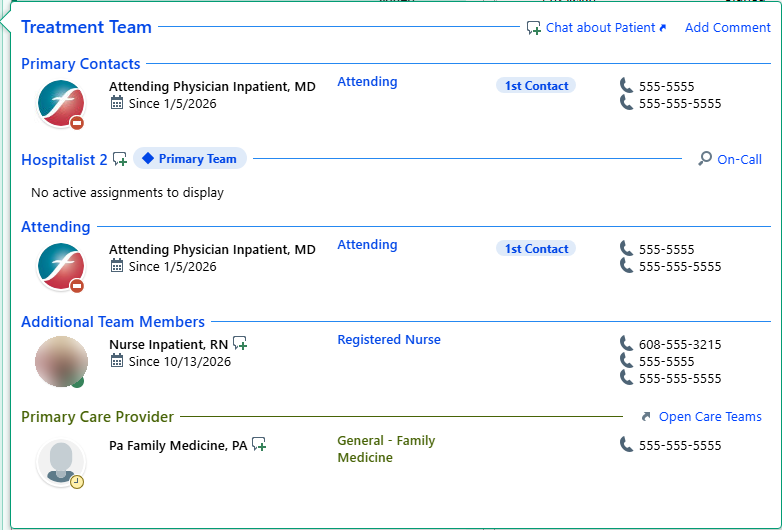
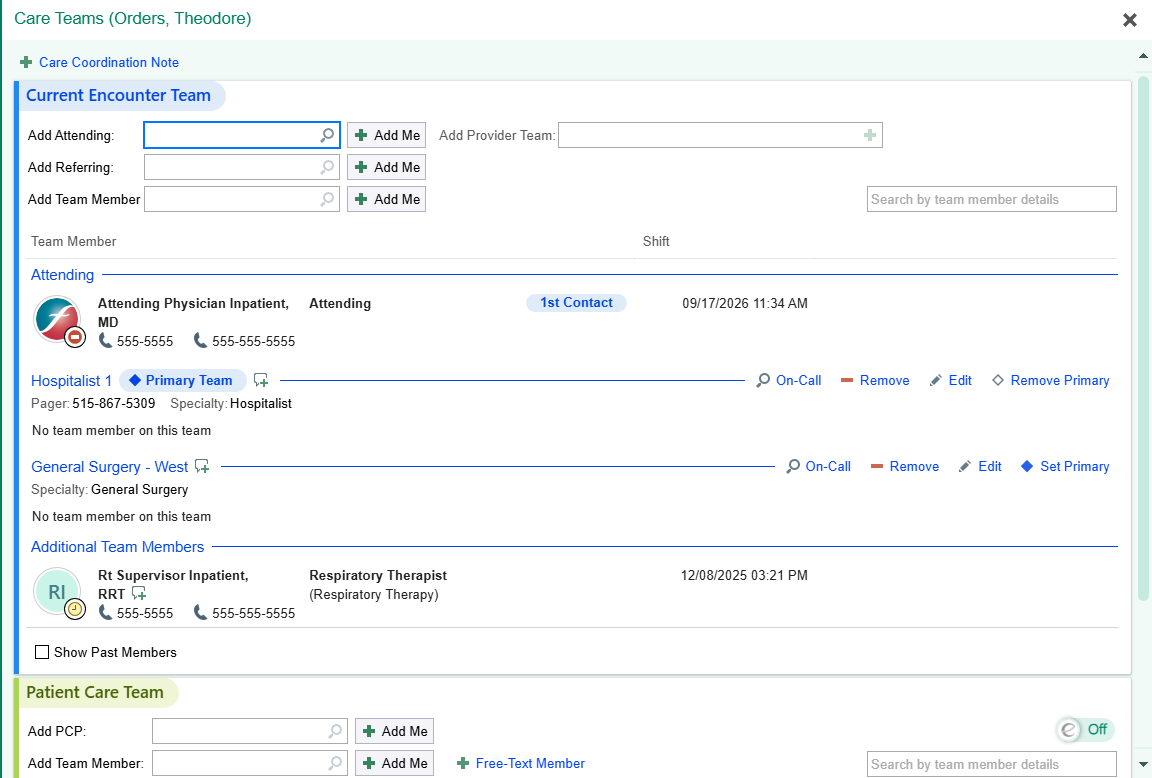
Patients are admitted either to an individual provider or to a team, depending on the service. After admission, unit clerks, providers, and residents can all assign providers to the patient's treatment team.
No gaps in the primary team
Freeman does not allow gaps in the primary team. Every admitted patient must always have a primary provider or team.
Before removing yourself or your team as primary, add the new primary provider or team to the treatment team.
Confirm the new primary provider or team shows on the treatment team.
Then remove or end the previous primary assignment.
Consults and the treatment team
Consult orders are placed to a provider group or team, not to an individual consultant.
Contact the consultant directly by Secure Chat or phone call before placing the consult order. Direct communication is required.
Place and sign the consult order, selecting the consulting provider group or team.
After you sign the order, the consultant or consult group appears on the patient's treatment team.
The consultant finds the new consult on their facility's New Consults specialty system list.
The consultant completes the consult by writing a consult note and linking it to the consult order.
Find and contact the right provider
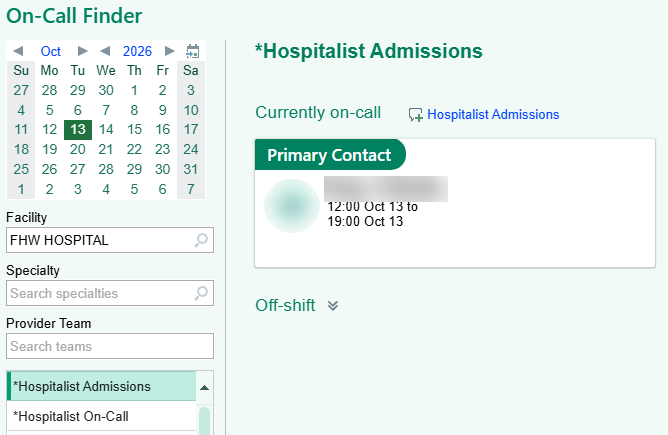
You don't need to check Amion or other systems to find who is on call. There are two ways to find them in Epic:
- Treatment team: the patient's treatment team shows the first contact for each team caring for the patient.
- On-Call Finder: open the On-Call Finder activity to view the call schedule for any service. All providers have access.
Once you find the right person, contact them through Secure Chat or phone call.
At discharge
Results that are still pending at discharge route to the patient's primary care provider, for both normal and abnormal results.
Frequently asked questions
The sign-in pop-up has been removed. If you are on the Amion schedule, Epic signs you into your team automatically.
Discuss with your scheduler to ensure you've been added to your schedule in Amion. Once added, changes may take up to 15 minutes to appear in Epic.
Until we move to Epic's Teamwork, Amion allows us to build on-call schedules and feed them into Epic. This allows our providers to be assigned to teams without having to manually do this every shift.
Yes. You won't show as an active team member, but others can still find you in Secure Chat. Set your status offline when you're off shift.
Open your team's patient list in Patient Lists. It shows every patient assigned to the team.
Stuck? IT Support Help Desk 417-347-4500 or fhsitsm.saasit.com.