
Personalization
Epic ships generic. The hour you spend personalizing is the difference between fighting the chart and moving through it. Your User Settings Lab is where that starts, and a speed button is the fastest win on this page.
When you can start
You cannot open PRD, Freeman's live Epic, until you have completed in-person training or passed Test-Out. Once you have, PRD is the red Epic icon already on your desktop. From that point you can personalize, and everything you set up stays with you through October 24 and beyond. There is no reset at go-live.
Complete in-person class, or pass Test-Out if you qualify. Nothing below opens until this is done. Training and Test-Out.

 STEP 2
After training, your login works in PRD, the live Freeman environment. Find it on your desktop: the Epic icon labeled PRD (shown here alternating red and white so you know which one to look for). Epic Environments.
In your User Settings Lab or on your own. Speed buttons, SmartPhrases, preference lists, patient lists.
Everything you build in PRD stays. Nothing is wiped or rebuilt.
The earlier you personalize, the more of go-live you spend on patients instead of settings. Personalization happens in PRD, so it is permanent; only training is done in a practice environment.
User Settings Lab
Dedicated time with Epic support staff to make the system yours. Plan on 1 to 2 hours, depending on how much you personalize.
- Your own note tools: at least one SmartPhrase, SmartText, or note macro for a note you write every day, plus your Ambient speed button
- Your own ordering tools: a Preference List and order set favorites for the orders you place most
- Your workspace set up: patient lists, In Basket, and your personal device enrolled for Haiku and Secure Chat
- Help with anything from class
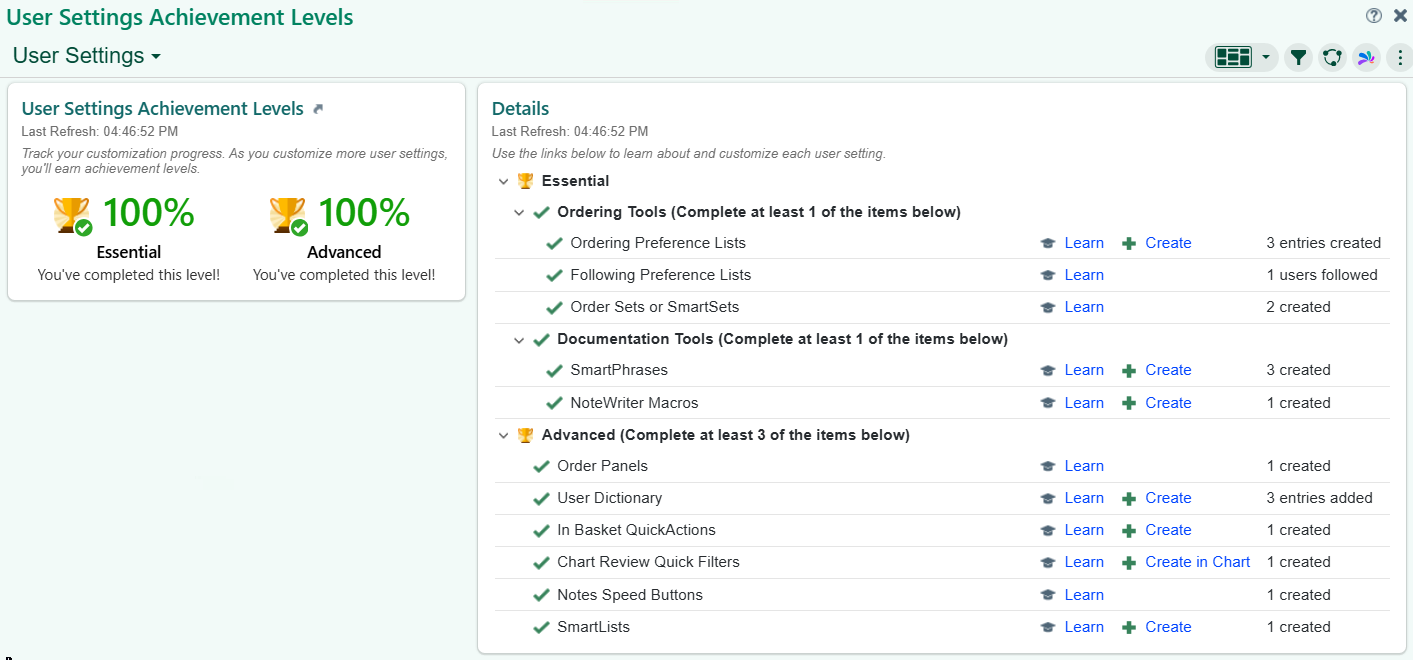
Epic tracks your progress as Essential and Advanced achievement levels; aim for both.
Your lab is the same day as your class. Nothing to schedule. Training and Test-Out
You schedule your own session, in person or virtually through Microsoft Teams. Virtual sessions require Epic remote access.
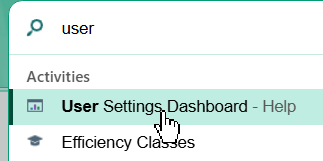
Schedule your User Settings Lab ↗You do not have to wait for a lab to work on your settings. In Hyperspace, type user in the search bar and open the User Settings Dashboard from the Activities list. It shows your Essential and Advanced achievement levels and links straight to each setting you still owe.
The same search lists Efficiency Classes, short optional sessions on getting faster in Epic. Take as many as you want, before or after go-live.
Build an Ambient speed button
A speed button sits at the top of the Notes activity and opens a new note with the note type and template already chosen. One click instead of three menus.
Freeman is moving to ambient documentation across the enterprise, so an Ambient speed button is the one speed button everyone needs. It takes about a minute. Build it in your User Settings Lab or on your own the first time you open Epic.
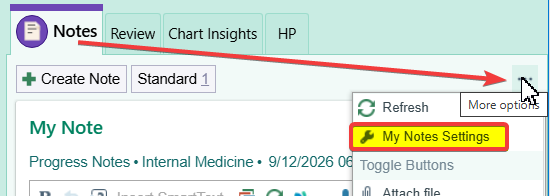
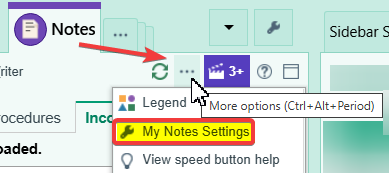
Two ways in, and both land in the same place. Use whichever is in front of you: the More options arrow in the Notes activity, or the More options dots while a note is open. Then pick My Notes Settings.
The panel cycles between the two routes. Tap a label to hold one.
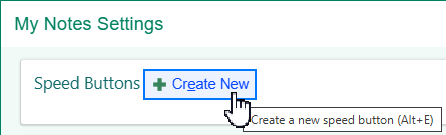
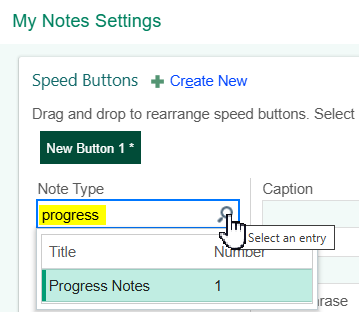
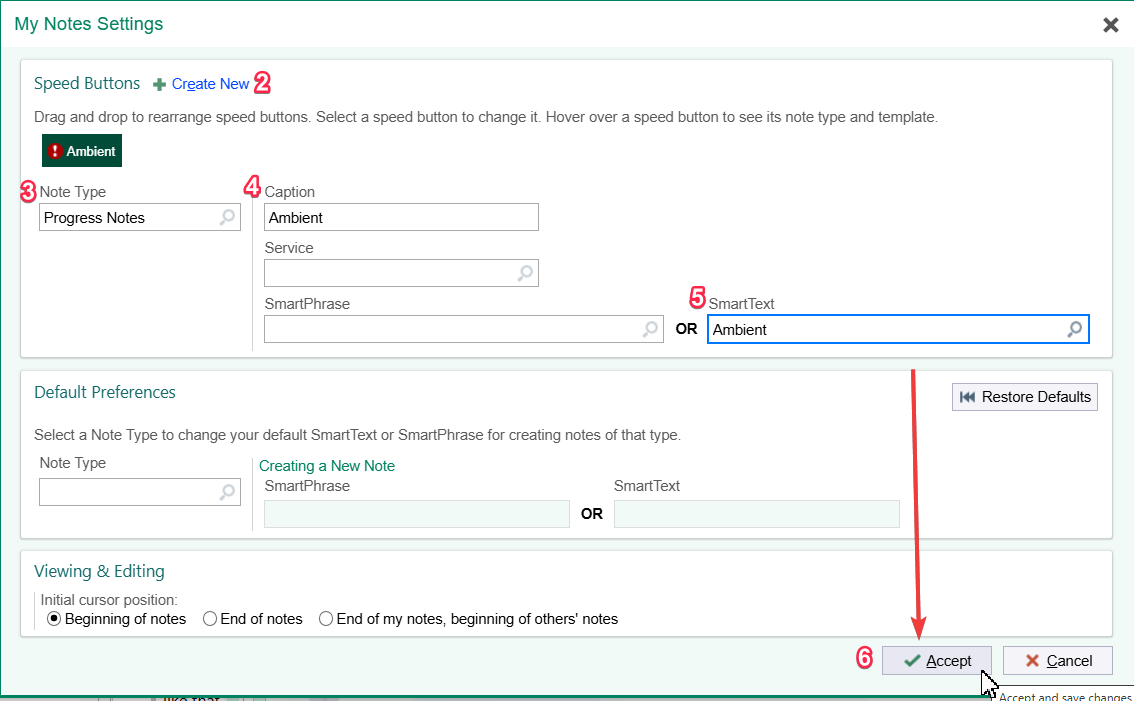
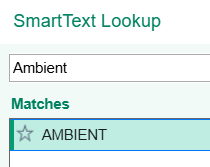
Next, make Abridge write the way you do: Make It Write Like You.
Using your speed button
Press the Ambient button at the top of the Notes activity to start an ambient note.
Speed buttons are numbered left to right, so your first button is Alt+1, the second Alt+2, and so on.
The button starts the note. Abridge does the listening and drafting. Go here to see the full workflow of an ambient note.
Two more things worth setting up early, an order panel and your preference list edits, are on Tips and Tricks.
Coming from another Epic organization
Epic Earth only works while you have an active login at both organizations. If the colleague you are exchanging with no longer has a login at their old organization, their SmartTools cannot be moved electronically. The practical options:
- Copy and paste. Open each SmartPhrase, copy the text into a Word document, and send that. The recipient rebuilds them in their own Epic. This is what most people end up doing, and for a handful of phrases it is faster than any alternative.
- Do not wait on an analyst export. User level SmartTools are built directly in the live production environment and are not migratable between organizations, so even when an analyst can export them, getting them into the other system is a manual rebuild. Freeman's Epic team cannot move them for you.
If you are moving your own tools and still have both logins, the Epic Earth steps below are the right path.
Your SmartPhrases can come with you. Before your lab, in your current Epic, click the globe icon in the upper right to open Epic Earth, then go to My Tools > My SmartPhrases > Move my SmartTools > Upload My SmartTools. In the lab we download them into Freeman's Epic. Preference lists, personal order set versions, and In Basket QuickActions do not transfer; write those down in a text file and bring it.
Every step of the transfer, both systems, with the screens you will see. For full details and images, click here.