
Home › Epic › Haiku and Secure Chat Setup
Haiku and Secure Chat Setup
Epic on your own phone and tablet, and the messaging that replaces Mobile Heartbeat.
Secure Chat in Epic replaces it the same day. Have Haiku installed and signed in before go-live so day one is not the first time you open it.
Secure Chat in Epic replaced it on October 24. Keep Haiku installed, signed in, and notifications on.
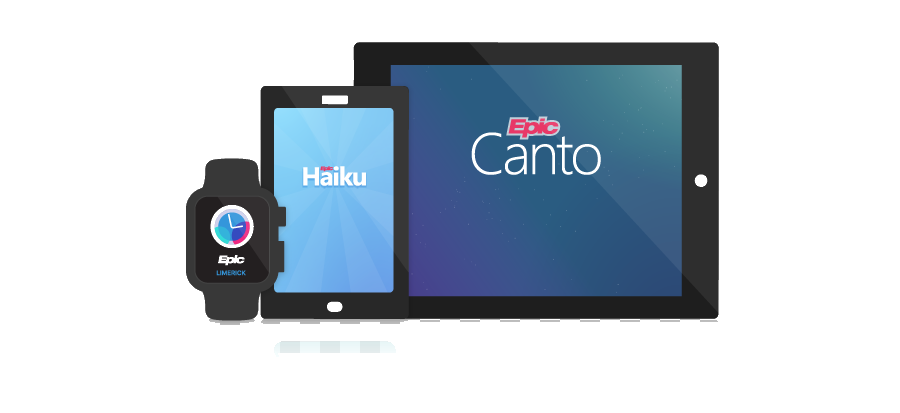
Which app?
Haiku setup
Haiku and Canto run on your personal iPhone, Android, or iPad. Your device needs a passcode or biometric lock; no patient data is stored on the device after you log out. Freeman is not issuing phones or paying stipends for Epic mobile.
Before Haiku or Canto will connect, you must complete the BYOD and Remote Access IT service request. It confirms you understand that patient data is paramount and that having it on your personal device carries responsibilities. The full terms are on the request form.
Submit the BYOD and Remote Access request ↗Remote access to Epic requires two-factor authentication. Have both apps installed before your BYOD and Remote Access request is approved so setup is one step, not three.

Enroll in three steps
Get Epic Haiku for your phone: Apple App Store or Google Play. On an iPad, get Epic Canto. They are free.
Open the app and scan the Freeman QR code for your device below (also shown at training and User Settings Labs). Scanning points the app at Freeman's Epic; nothing else to type.
Use your Freeman username and password, the same login as a Freeman workstation. Allow notifications so Secure Chat can reach you.
These codes connect Haiku and Canto to PRD, the live Epic environment only. Scan the one for your device, then tap Haiku Environments (phone) or Canto Environments (iPad).
You get PRD access during your Epic training or after you test out, so scanning before then will not sign you in. They also only work if your BYOD and Remote Access request has already been submitted and processed. If you scan and sign in but nothing loads, that request is the most likely reason. Submit it first, then come back and scan.


Want to see every screen? The advanced step-by-step Haiku and Canto Login Guide walks from the app store through the MFA sign-in.
Stuck at any step? IT Support Help Desk 417-347-4500 or fhsitsm.saasit.com.
Secure Chat basics
Secure Chat runs in Hyperspace, Haiku, and Canto with push notifications. It shows when a message is Seen, attaches the patient so the chart opens in one tap, and supports availability status, groups, and forwarding.
Availability status
| STATUS | EXPECTATION | NOTIFICATIONS |
|---|---|---|
| Available | Sees and responds within 1 to 2 hours | Push notification |
| Busy | Sees and responds within 4 hours | Push notification |
| Do Not Disturb | Next day or next business day | No push; only Urgent breaks through |
| Offline | Will not see messages until back online | Cannot send, receive, or be added to threads |
Send only to people marked Available or Busy. Surgeons and proceduralists set up forwarding once (to a person or a role such as circulating nurse); the system marks them Busy during procedures. Full etiquette on the EMR Etiquette page.
Phone numbers: DN and DID
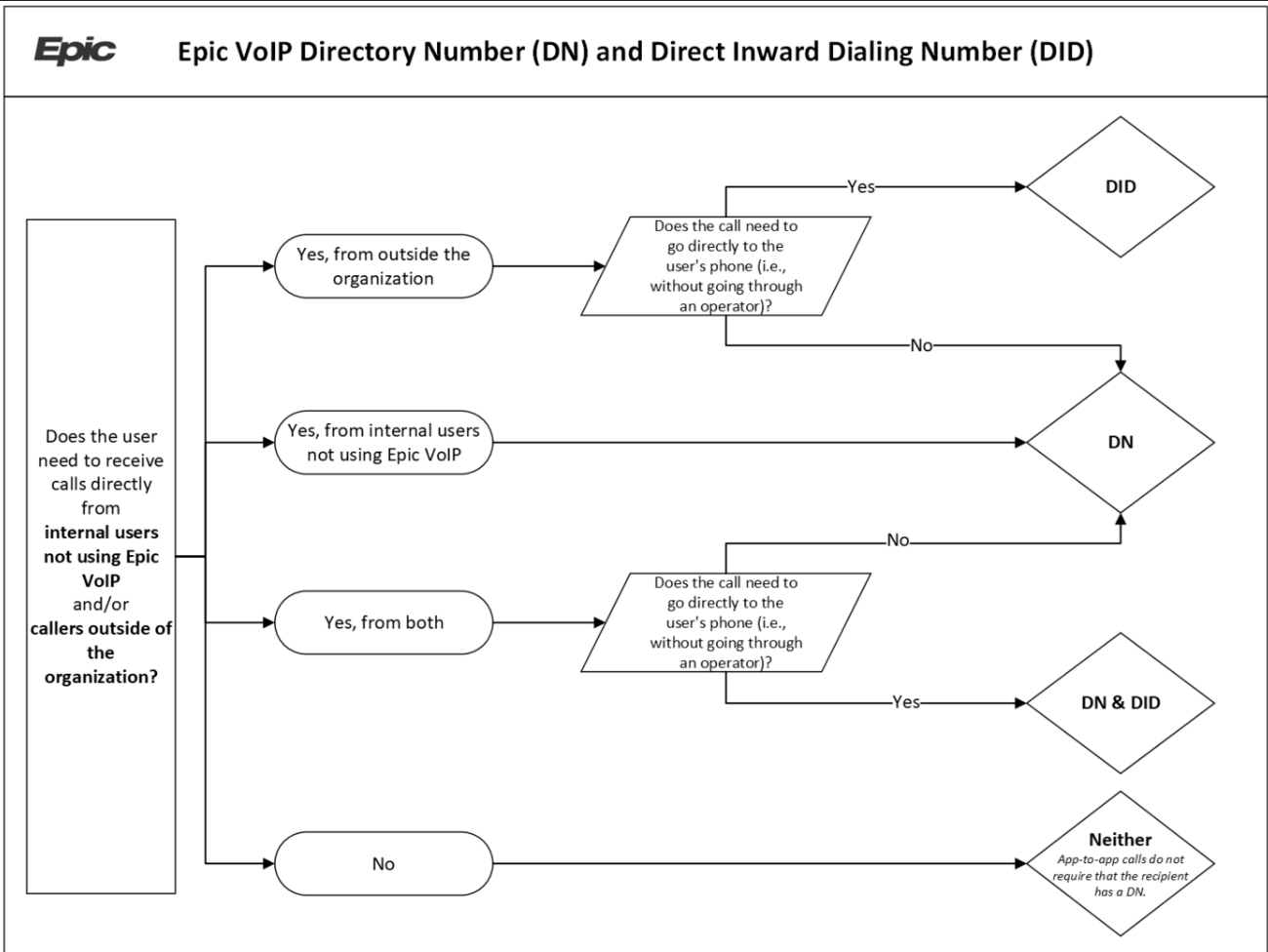
Secure Chat is integrated with Epic VoIP. Depending on who needs to call you directly, you get one, both, or neither number:
Check your numbers in your Secure Chat profile.
After Mobile Heartbeat sunsets: how to escalate
How to escalate in Secure Chat
Phone or face to face. Never Secure Chat. Codes and rapid responses follow the existing overhead and paging process.
Secure Chat marked Important (20 minutes) or Urgent (5 minutes) with the patient attached and a clear ask.
Check their availability status. If Do Not Disturb or Offline, call their DN or DID, then the covering provider or the unit charge nurse.
Secure Chat at Normal priority. One summarized message beats several short ones. No "thanks" or "ok" replies.
SMS, iMessage, and other messaging apps are prohibited for any patient-related communication.
Round at an external location
Seeing a patient away from a Freeman site? Use Haiku to find the patient, create an encounter in your home department, write the note, drop the charge, and sign the visit, step by step with screenshots.
Round on patients at an external location